Working with PDFs, RTFs, and Word documents
Sometimes you might have physical documents that you want to upload into your SongSheet Pro library, or digital song sheets that are in an inconvenient format on your device. This article will outline how SongSheet Pro handles various file formats, allowing you to import virtually anything you want into your Library!
Import formats and behaviors
Main article: Import and Export formats
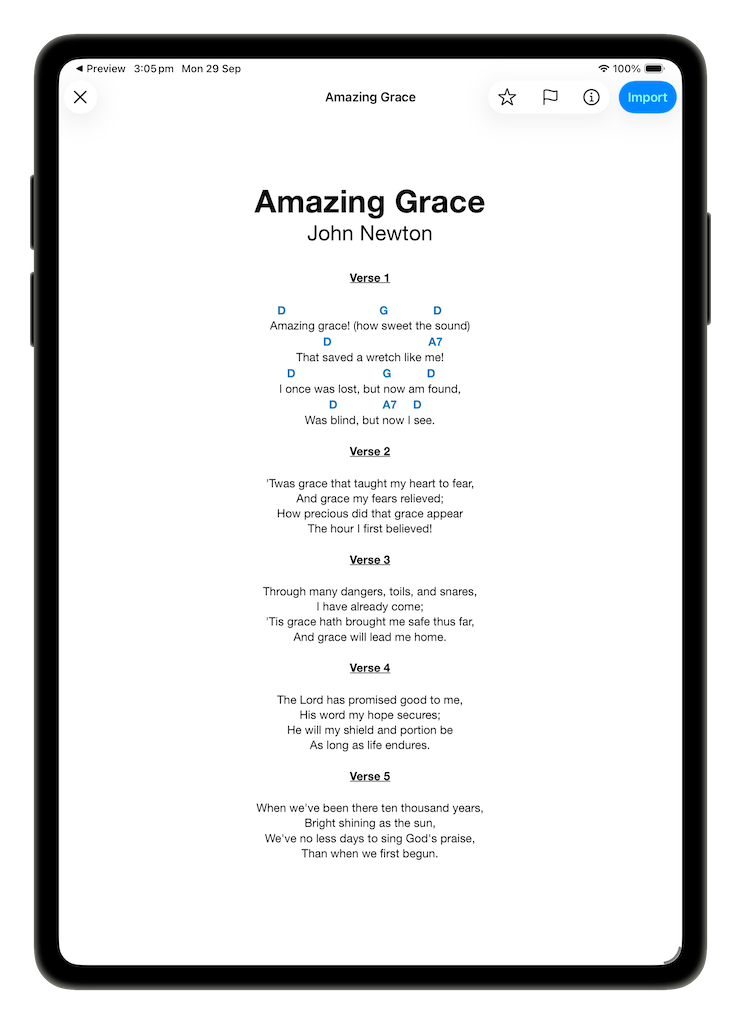
SongSheet Pro can import files saved on your device in a number of different formats. These include:
- Microsoft Word
.docand.docx - RTF
- Plain text
- ChordPro
- and others
To import one of these files, tap on ➕ (Add Songs) then Browse. Navigate to the file, select it and tap Open. This will open up one of three preview options, depending on the file type opened.
PDF, Microsoft Word, RTF:
SongSheet Pro will present you with a preview of the song. From this preview you can tap on  (the metadata button) to bring up a sheet allowing you to edit the song’s title, artist, composer, lyricist, arranger, and key. You can also favorite or flag the song from this import preview. Tap on the Import button at the top of the screen to add it to your library.
Plain Text:
SongSheet Pro will present you with a “Conversion Preview” screen. This differs from the “Import Preview” screen by adding an option to adjust each individual line type in the song. Tap the Line Types button at the base of the screen to adjust how SongSheet Pro views the song, line by line. Once finished, you can import the song by tapping the Import button at the top of the screen.
ChordPro and others:
SongSheet Pro will present you with an “Import Preview” screen. This screen allows you to preview what SongSheet Pro will add to the library and edit any metadata for the song, including Key, Tempo, Capo, Time Signature, and more. When you are happy with how the song looks, tap the Import at the top of the screen to import it into your library.
For any non-supported format, first convert to one of the above formats (e.g. PDF or plain text), then import that file into SongSheet Pro.
Scanning physical documents
If you have a physical piece of paper that you would like to import into SongSheet Pro, tap on ➕ (Add Songs) then Scan. This will open up your device’s camera. Position the document into the centre of the screen and wait for the camera to capture the image. If there is more than one page, continue until all pages have been scanned. When you have finished scanning, tap on Save to import all the images into SongSheet Pro as a single PDF.
SongSheet Pro will show you a preview of the PDF file, while performing some analysis on the scanned text to detect song metadata. Once this analysis is complete, it will open up the metadata editor. Here you can change the song’s title, artist, composer, lyricist, arranger, key, tempo, capo, etc.
If SongSheet has recognised text in the scan, you can optionally turn on OCR to see what text it has recognised and how it is parsed as a song with lyrics and chords. When you are happy with the metadata and have optionally flagged or favorited the song, tap on Import to add the PDF to your song library.
Converting into native format
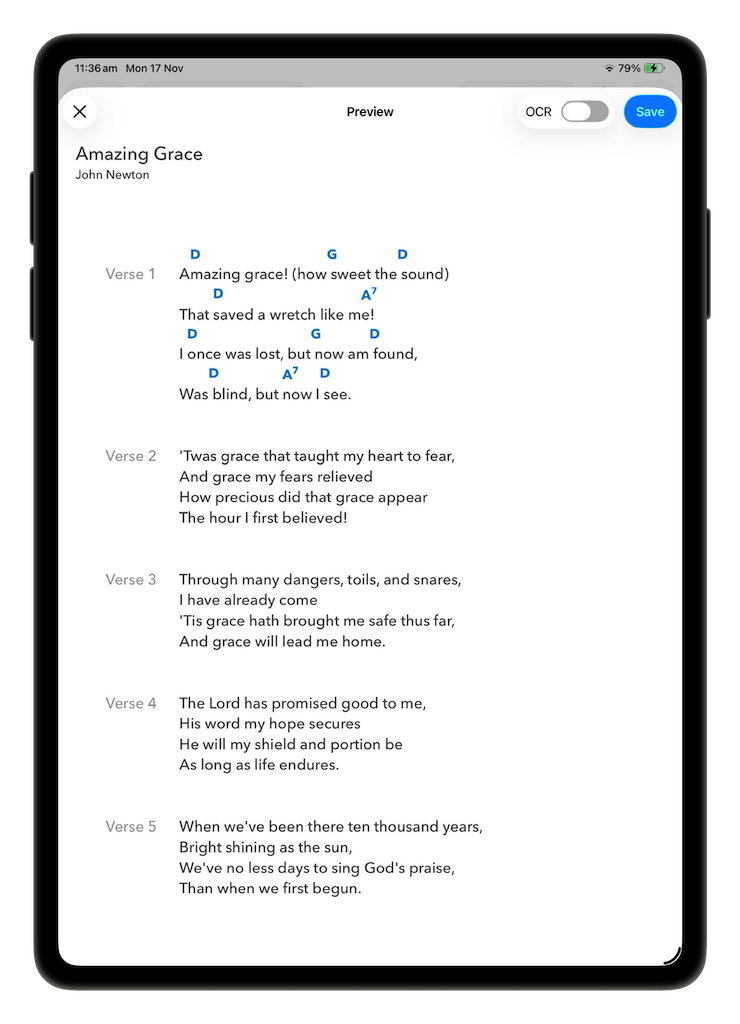
SongSheet Pro does not allow direct editing of PDF, Microsoft Word, or RTF files saved in your library. If you view such a file in your library and tap Edit, you will be presented with options to Convert song or to Edit metadata. If you tap on Edit metadata, you will be able to edit the song’s title, artist, composer, lyricist, arranger or key. However, tapping on Convert song will bring up a conversion preview with what SongSheet Pro has been able to read from the song.
When converting a song, SongSheet Pro tries to directly extract the text from the document data. However, sometimes not all text in the document is actually encoded as text - sometimes some text is encoded as an image. For this reason, in the top right of the conversion preview, SongSheet Pro offers a toggle to use OCR instead of direct text extraction. Tap this toggle in order to view what SongSheet Pro is able to extract using each method, either directly from the document data or from image processing. Sometimes SongSheet Pro was unable to extract any text at all from the document; in this case it uses OCR by default and you cannot toggle between the methods.
After tapping Save, SongSheet Pro will warn you that saving will remove the original file, and ask if you want to continue. Tapping Save will remove the original file from your library, and replace it with a native, fully editable, SongSheet format song.
Note: Converting a PDF, RTF, or Word document will transfer over all metadata and tags to the new file.
Performing with PDFs, RTFs, and Word documents
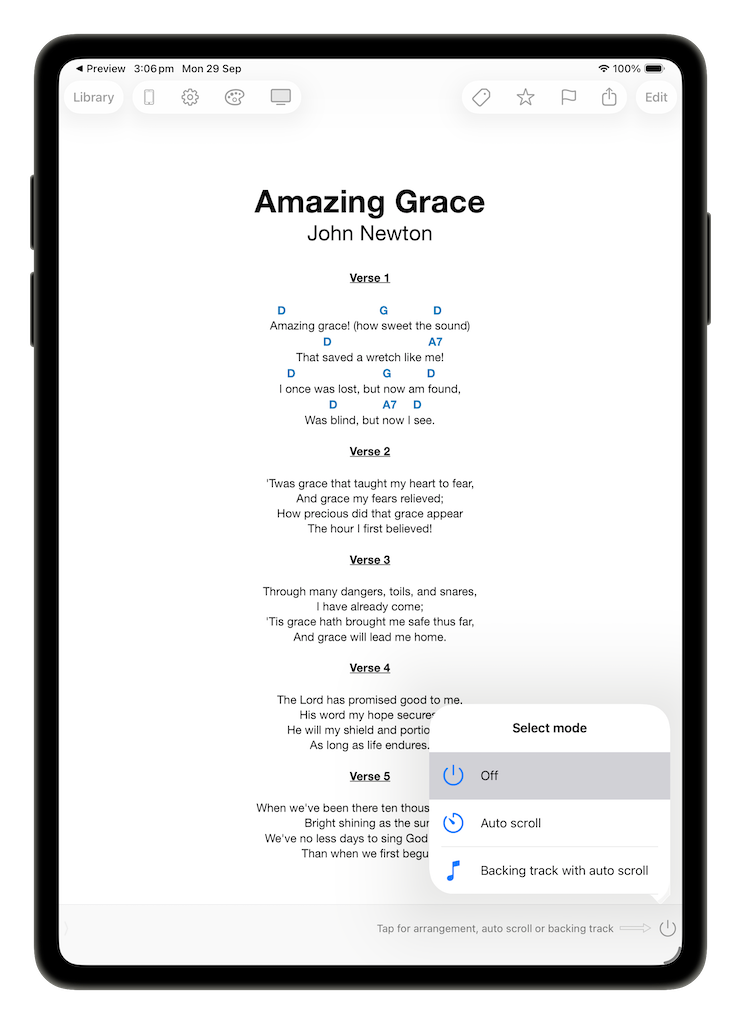
Sometimes you want to keep a PDF, RTF, or Word document file in your Library without converting it to the SongSheet Pro format (e.g. to keep formatting, notes, etc). In this case, if you wish to perform the song, SongSheet Pro offers the options of using auto scroll or backing track with auto scroll.
To use either of these functions, tap on the  (mode select button) in the timeline controller at the bottom of the screen. Select either
  Auto scroll or
  Backing track with auto scroll. If you choose Auto scroll, you can then change the duration from the default value of 3 minutes 30 seconds. If you choose Backing track with auto scroll, the duration will automatically be set to the length of the backing track that you choose. You can then perform the song as normal.
Finding PDFs, RTF, and Word documents in your library
When viewing your library, you can search directly for songs using a specific file type. Simply type the file type that you want to search for into the search bar. SongSheet Pro will offer a suggestion for you to filter the library specifically by the file type - tap on the suggestion and you will be presented with all songs in your library with that file type. For example, if you want to search for all PDF files in your library, type “pdf” into the search bar and tap on the PDF file type suggestion.
Note: You have to type all three characters of the file type in order to search for that type. For example, when searching for PDF files, you need to type “pdf” - “p” or “pd” will not allow you to search for PDF files. Also, “doc” will give you the options to search for ‘.doc’ and ‘.docx’ file types if you have any of those in your library.
Note: You can only use this search feature for PDF, Microsoft Word, and RTF documents, as all other importable file types are automatically converted to the native SongSheet format when you import them!