Sharing and exporting your song library
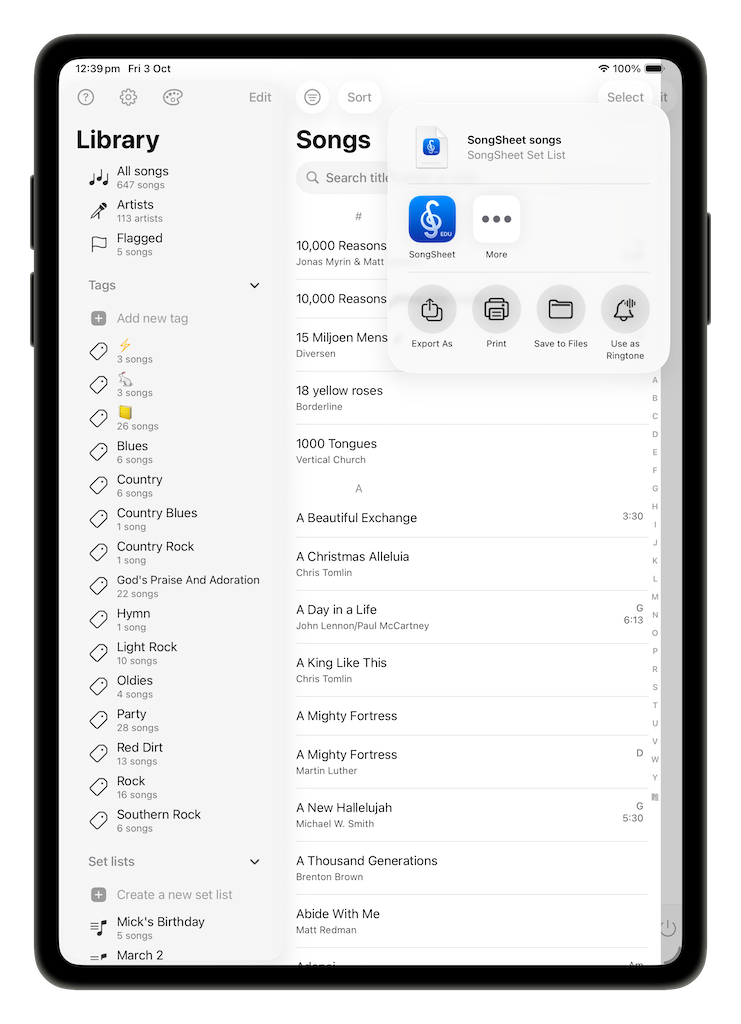
With all songs selected, open the share sheet by tapping  (the share button). This will present you with the following options:
- Send Songs – makes a copy of every song in your library, or just the filtered list (if you have an active search), and allows you to send the resulting archive via AirDrop, Mail, Messages, etc.
- Export As - allows you to create a PDF or CSV version of your song list only (not the songs themselves), and allows you to share the resulting file or save it to files for CSV, or also Markup or Print the file for a PDF.
- Print - allows you to print a list of the songs titles in your library.
- Save to Files - creates a .songsheet-setlist file in your Files app containing all the songs in your library.
Backing up your library
You can backup your entire library of songs very simply. To do so, save your entire song library to files using the method outlined above.
We recommend you do this regularly to avoid losing your work.
Restoring from a backup
If you saved your library to Files, navigate to the archive and open it in SongSheet Pro to import the songs. This is the simplest way to restore a backup of your library.
Alternatively, if you have emailed the entire song list to yourself, you can tap on the “tap here to import” link or open the attachment. SongSheet Pro will open and go to work reimporting all your songs.
Last updated: September 22, 2025