Backing tracks
Sometimes you might want to play along to a backing track: either live, or in rehearsals when you are learning a new song. You can choose any song from your iPad’s music library as a backing track in SongSheet Pro.
You can only choose songs that you have downloaded and in your music library. That is, any iCloud-only songs will not be listed when you try to select a backing track.
When performing, you can either have your lyric text auto scroll over the duration of the song, or you can program a custom arrangement that will have each stanza highlighted at the matching time in the track.
Selecting a backing track
In the controller at the bottom of the screen (swipe from the right edge of the screen to show it if it is hidden), tap the mode select button in the bottom-right. When you don’t have an arrangement, auto scroll or a backing track already configured, this control will look like the following image:
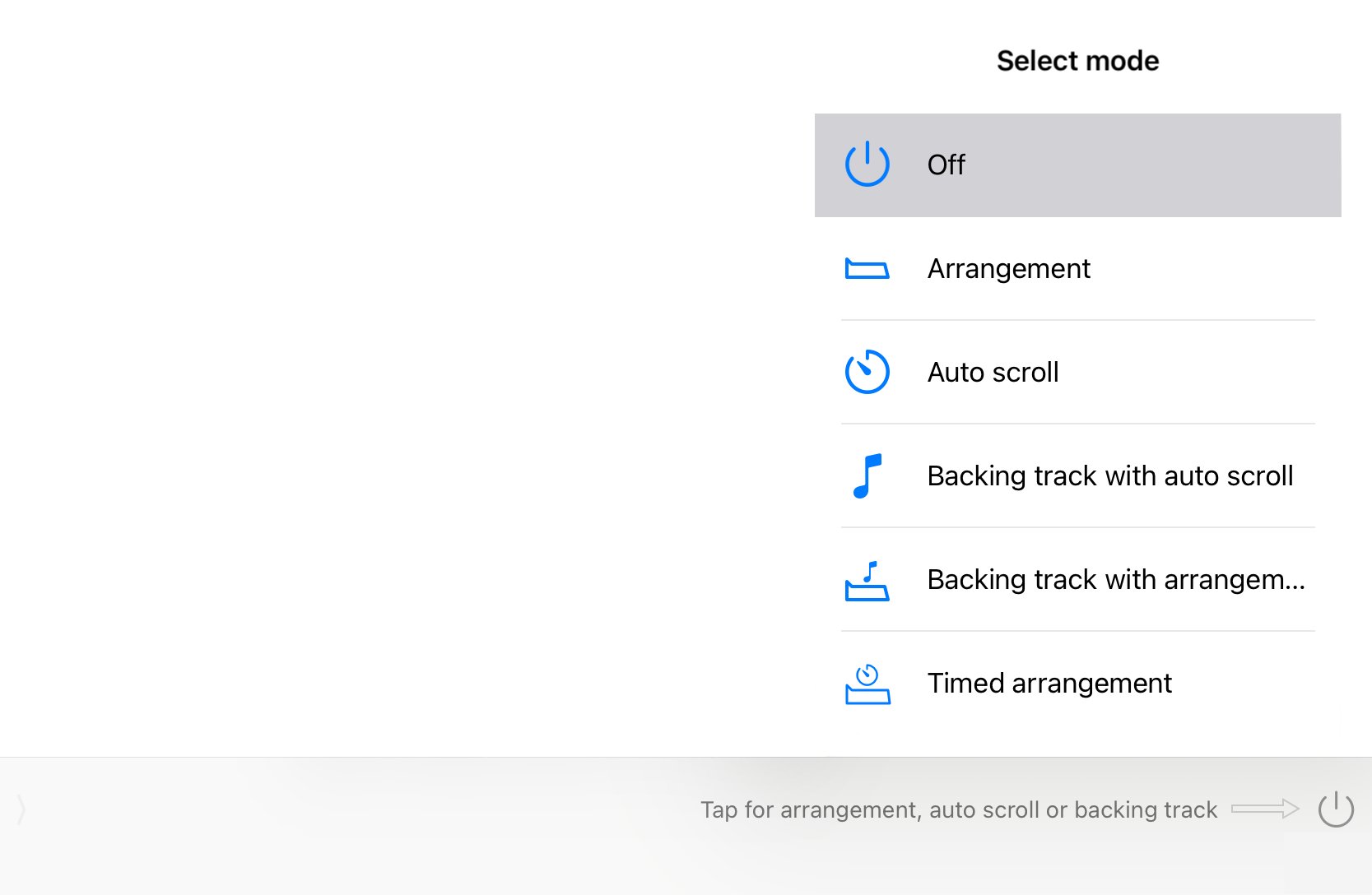
Two options for backing tracks are available: Backing track with auto scroll and Backing track with arrangement. Tapping either of these will present an interface to select any downloaded track from your iPad’s music library.
In the library view, you can filter for all songs that have an associated backing track by tapping
(the filter button) then
(the backing track button).
With a track selected, the control at the bottom of the screen will switch to the backing track playback view.
If you selected Backing track with auto scroll the view will look like this:

If you selected Backing track with arrangement this view will contain extra controls for editing a time-based arrangement:

If you tap the mode button now, you will notice an info button on the right-hand side of the selected mode:
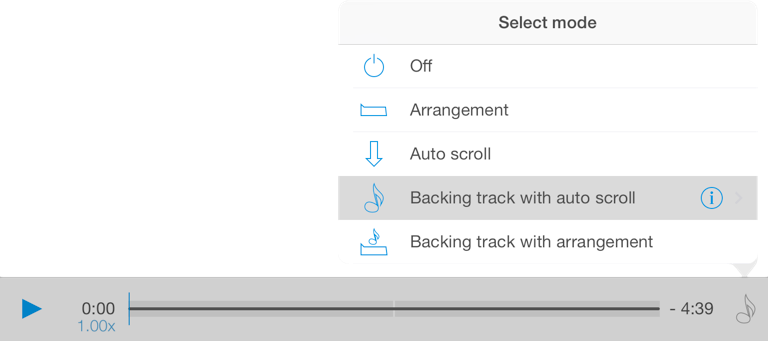
Tapping this will present a view showing you the currently selected track, with options to Clear the selected track or Select a new track.
The whole song as a play / pause button
Just as with the auto scroll mode, you can drag the play button into the center of the screen in order to convert the song into a single play and pause button. To return the play button to the left of the timeline, long tap in the centre of the screen.
Backing track with auto scroll
You may notice that apart from the normal music playback controls, the timeline itself looks similar to the one you use for auto scroll without a backing track:

The auto scroll duration is simply the length of the backing track you selected.
If you tap the play button, the track will begin playing and the lyrics will begin to scroll. Tap pause to stop the track playing. You can also scrub through the track. The displayed portion of your lyrics will smoothly update to match the current playback position.
Backing track with arrangement
You can also create an arrangement to use with a backing track. This is especially useful if you use the backing track in a live performance: you can program each stanza change to precisely match the backing track, and SongSheet Pro will automatically highlight each stanza for you as it is reached. If you have an external display connected (via cable or AirPlay mirroring), each stanza will also be automatically displayed there as well (see the section on external displays for more information).
When you first choose to use an arrangement with a backing track, it copies the arrangement (if any) you may have created without a backing track.
From then on, any changes you make are independent of the other arrangement.
To enter arrangement edit mode, tap the Edit button to the right of the arrangement. When editing, the Edit button becomes Done (tap this to exit edit mode), and the mode select button is disabled.
Deleting a marker
Tap an arrangement marker. The scrubber will cue to the beginning point of that marker, and you will also be presented with the option to delete that marker:

If you tap Delete, the previous marker will extend its length to fill the gap created by deleting the marker.
Changing the start time of a marker
Each arrangement marker is time-based. Dragging it by tapping and holding the marker will affect the start time for that marker:

When you finish dragging, instead of the markers rearranging themselves (as they do in arrangements without backing tracks), the length of time each stanza is displayed alters to take into account the marker’s new start time:

Inserting a new marker
To insert a new marker, either let the song play, or alternatively scrub to the point in the song at which you wish to insert the new marker:

Then, tap on the stanza in your lyrics. SongSheet Pro will insert a new marker for that stanza at the current track location:
