Managing songs
The number of songs you can store in SongSheet Pro is limited only by the capacity of your iPad.
Adding a song from within the app
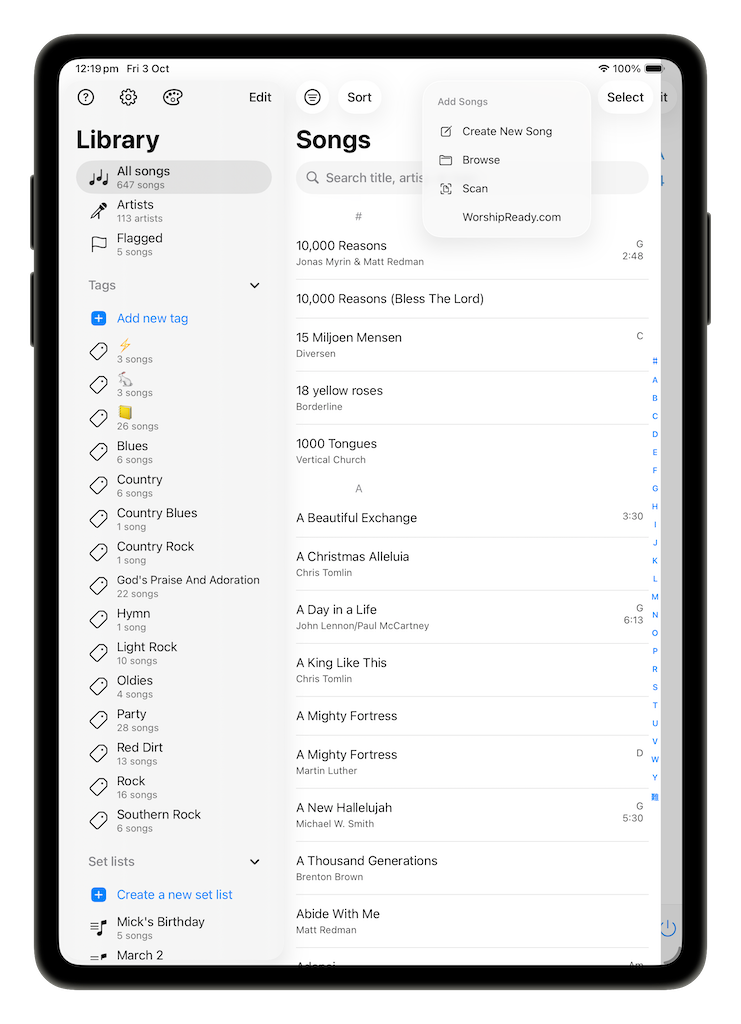
Tap the plus (add songs button) to add a new song to your library. This presents you with several options - Create a new song, Browse files on your device to import, Scan a song with your device’s camera, or Import a song from WorshipReady.com. When you add or create a song, SongSheet Pro will open the lyrics view in edit mode.
If you are creating a new song, you can now copy and paste the song lyrics and chords from the web or another source. There are literally thousands of song sheets available online on various websites. Simply search for “<song-name> lyrics and chords” in a search engine, and more often than not you can find what you are after. Copy the text and paste it into the editor, or simply drag the selected text right into SongSheet Pro!
If you choose to import a file, SongSheet Pro is able to handle a wide range of formats. SongSheet Pro is able to import files sent from other SongSheet Pro users, plain text, various ChordPro formats (including .dbt files from Song Sheet for Windows), Microsoft Word (.doc, .docx), PDF, and RTF formats. Files in formats that cannot be imported by SongSheet Pro will be grayed out and unselectable.
If you have a physical song sheet that you would like to carry around digitally, SongSheet Pro is able to scan and import the song into your device. Just position the camera over the page, press the scan button, and SongSheet Pro will convert the page into a PDF song sheet within the app.
If there is a song on WorshipReady.com that you would like to import, use this option. SongSheet Pro communicates directly with WorshipReady.com for a seamless experience. Simply sign in with your WorshipReady.com account, then browse available songs by a number of filters including artist or key, or search for a song directly.
With each of these methods, SongSheet Pro offers a preview of the import for your review before importing. When importing a plain text song, or scanning a physical copy, SongSheet Pro does its best to automatically determine which feature a line contains, such as chords, lyrics, or the song title, but it isn’t perfect. SongSheet Pro offers you the opportunity to override what it has detected in the import preview.
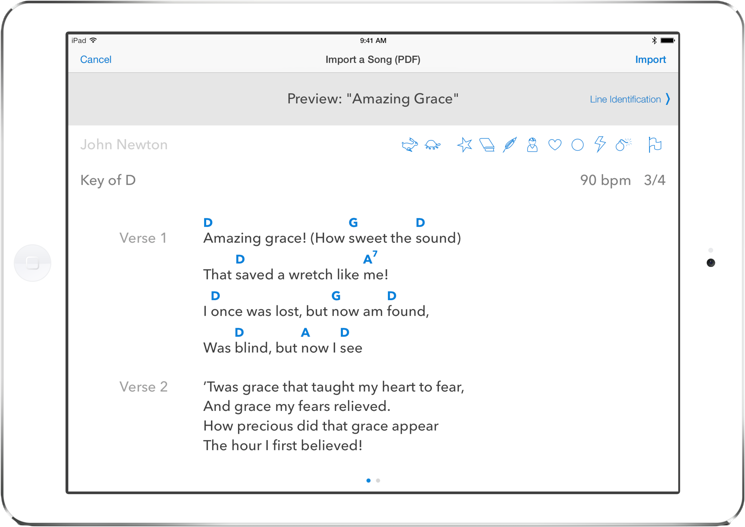
If you wish to change the type of each line in the song, tap on Line Identification or swipe the song to the left. You will then be presented with a new view where you can override the line types that SongSheet Pro detected.
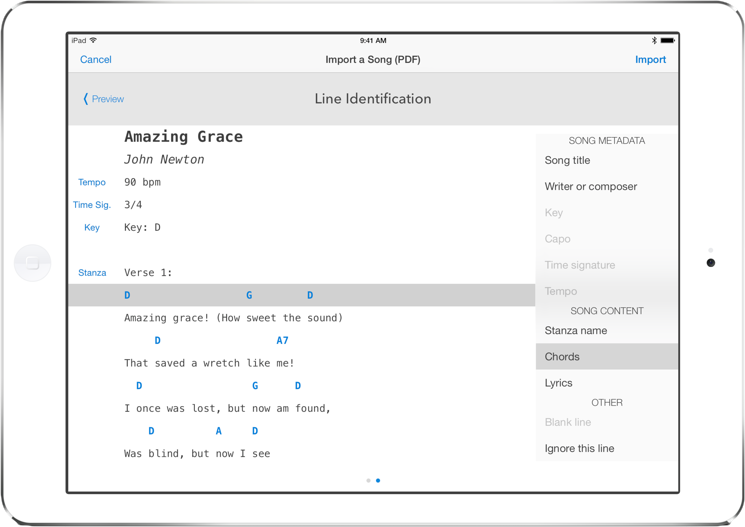
If you wish to change the identification of a line, tap on the line then select the appropriate line type from the list on the right. You can also force SongSheet Pro to ignore (not import a line) by selecting Ignore this line from the list.
For more information on changing how the song looks, including renaming and rearranging stanzas, changing the key, or even just changing some of the lyrics, see the chapter on editing songs. Once you are happy with the import, tap the Import button in the top-right to add the song to your library. Alternatively, tap Cancel in the top-left of the screen to dismiss the import view without importing the song.
Opening a song from within another application
Another way of getting songs into SongSheet Pro is by selecting it in the share sheet from another application. You can do this with any file format that SongSheet Pro supports. In the other application (e.g. the Files app) select the file, open the share sheet, then select SongSheet Pro if it appears in the list of suggested applications. Once SongSheet Pro opens, it will present the same import preview screen as described in the section above.
Drag and drop songs into SongSheet Pro
Using the Files app, it is quite easy to just drag and drop the songs you wish to add to SongSheet Pro. You can either drag in a whole folder full of songs, or do so one at a time.
This works also if the song file is an attachment to an email, or in another application. If it is one of SongSheet Pro’s supported formats, and you can drag it, then you can also drop it into SongSheet Pro’s library.
The video below demonstrates how to import songs and folders into SongSheet Pro via drag and drop:
Drag and drop text to create a song
Using drag and drop, adding songs to SongSheet Pro from websites becomes almost trivial. All you need to do is open Safari, find the lyrics and chords for the song you are after, then select the song and drag it into SongSheet Pro.
This video demonstrates how easy this can be:
Deleting a song from your library
To delete a song from your library you must be viewing your song library (by title or artist) and not a setlist. (If you are viewing a setlist, you will only remove a reference to the song from that setlist rather than deleting it from your library.)
There are two ways to delete a song from your library:
- Use the standard swipe right-to-left gesture on the song entry; a red Delete button will be shown. Tap the button to permanently delete the song, or tap elsewhere to cancel.
- Tap the Select button at the top right of the screen. You will then be able to select as many songs as you want to delete. Once you select at least one song, the trash bin button will be selectable. Tapping this will present a warning asking if you are sure you want to delete the song(s). Tapping the Delete button will remove all selected songs from your library. When you have finished deleting songs, tap the Done button.
Warning: once a song has been deleted you can’t get it back.
Make sure you make regular backups of your song library to provide a means of recovering songs you may have accidentally deleted. Backing up your library is easy.