Tagging
Do you have a song that you really like, but you don’t know what other songs would go well with it? That is where tagging comes in! Tag your songs with any number of user defined tags, in order to quickly find songs that have similar emotions, topics, or genres.
Creating and deleting tags
Creating tags
In the Library view, go to the left pane and find the Tags section. Right below the heading will be a button that says Add new tag. Tap on this, and a popover will appear that allows you to type in the name of the new tag. Once you are satisfied with the name, tap on Done and it will add the new tag to the list of tags in your library. The tag can be any form of text - if you can type it, you can use it as a tag.
Sometimes you might be viewing a song and you want to create a new tag inspired by that song. In the song view, find the tag button in the menu bar and tap on it. This will bring up a popover with all tags currently applied to the song, and all user tags already created. Tap on Add new tag to get the same popover as just described, and once you give the new tag a name and tap on Done, it will create a new tag for you and add it directly to the song you are viewing. If you exit the song view and look at the Library pane again, then the new tag will be added to that list.
Deleting tags
Sometimes you may want to delete a tag that is no longer useful. In the library view, you have three options for how to do this. You can swipe to the left on the tag, and it will bring up an option to Remove the tag. Tap on this, and the tag will be deleted. Alternatively, tap on the Edit button in the menu bar, then individually delete any tags you wish by tapping on the red circle then on Remove. Finally, you can long press on the tag, and it will bring up a menu from which you can Rename or Remove the tag. Press on Remove and the tag will be deleted.
Note: Deleting a tag will remove the tag from all songs that have it. Deleting a tag will not delete any of the songs in your library.
Note: A tag is not automatically deleted when it is not used. A tag must be explicitly deleted to be removed from your library.
Adding and removing tags from songs
Adding tags to songs
SongSheet offers multiple ways of adding tags to songs. The first and main way is to go into the song view for the song you want to add a tag to. In the top menu bar, there will be a tag button. Tap on this, and a tagging popover will appear. You will be able to see the user-defined tags, and choose any that you wish to add to the song. If you want to add a tag that doesn’t exist, you can tap on Add new tag to create a new tag and add it directly to the song.
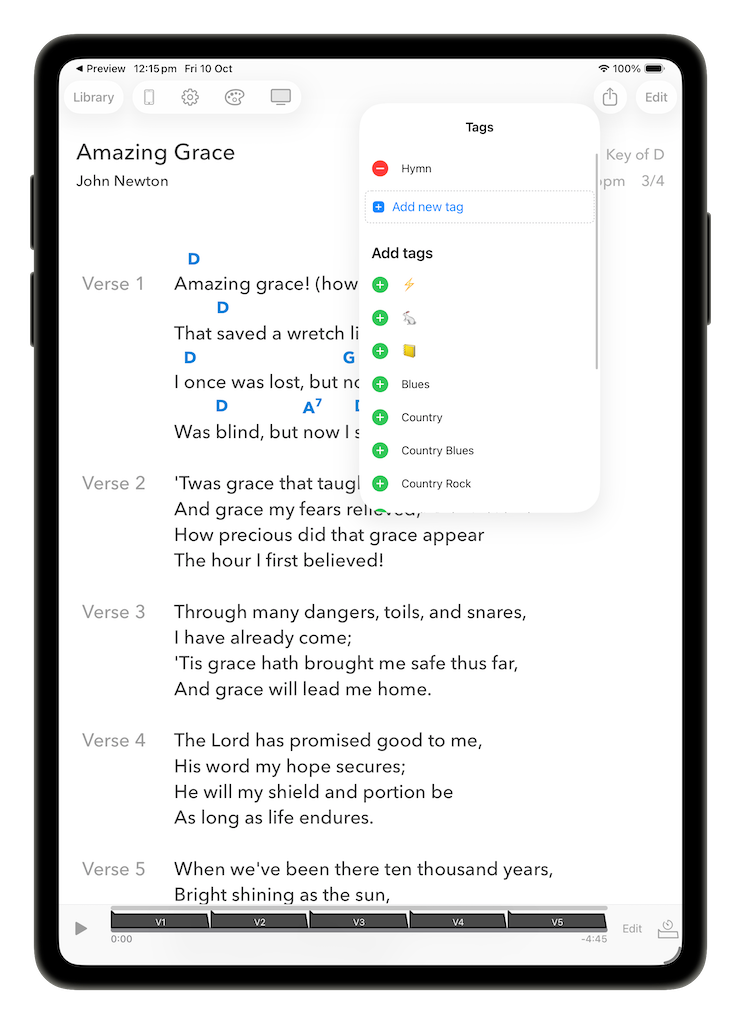
You can also add tags from the song list view by choosing the Tags option from the shortcut actions revealed when you swipe left on a song, or from the long-press context menu.
Dragging and dropping a song onto a tag in the Library view will add that tag to the song.
Finally, if you are currently viewing a list of songs belonging to a particular tag, then adding songs from this view automatically tags those songs with the selected tag.
Removing tags from songs
If you no longer wish for a song to have a particular tag, there are two ways to remove the tag from the song. The first way is in the song view, tap on the tag button in the menu bar. You will then be able to remove any tags from the song that you wish, by tapping on the red circle, then on the Remove button, and repeating for all tags you wish to remove.
Note: Removing a tag from a song in this way will not delete the tag, even if the tag is no longer used by any other songs in your library.
You can also remove a tag from a song by deleting the tag, as outlined above in the section on deleting tags.
Renaming tags
Just like deleting a tag, renaming a tag is simple. In the Library view, simply swipe to the left on any tag you wish to rename, then tap on Rename. This will display a popover from which you can rename the tag. This will also update the tag on all songs which use the tag.
Alternatively, you can tap on Edit, tap on the red circle, then tap on Rename, or long press on the tag and tap on Rename.
Note: Renaming a tag to the same name as another tag will merge the two tags into one, automatically updating all relevant songs.
Searching and filtering by tags
(For more explanation on this section, see Searching and filtering)
In the song list view, you can search or filter your songs by any tag in your library. Simply tap on the search bar and start typing, and once you have three or more letters, SongSheet Pro will suggest any tags that match the search that you are making. Tapping on one of those tags will search your song library for any songs with that tag.
Alternatively, in the left hand pane, tap on a tag to show all songs with that tag.
