Working with lyrics
Entering and selecting text
The editor is like any text editor you are used to on the iPad, with a few customizations to optimize it for lyrics and chord entry.
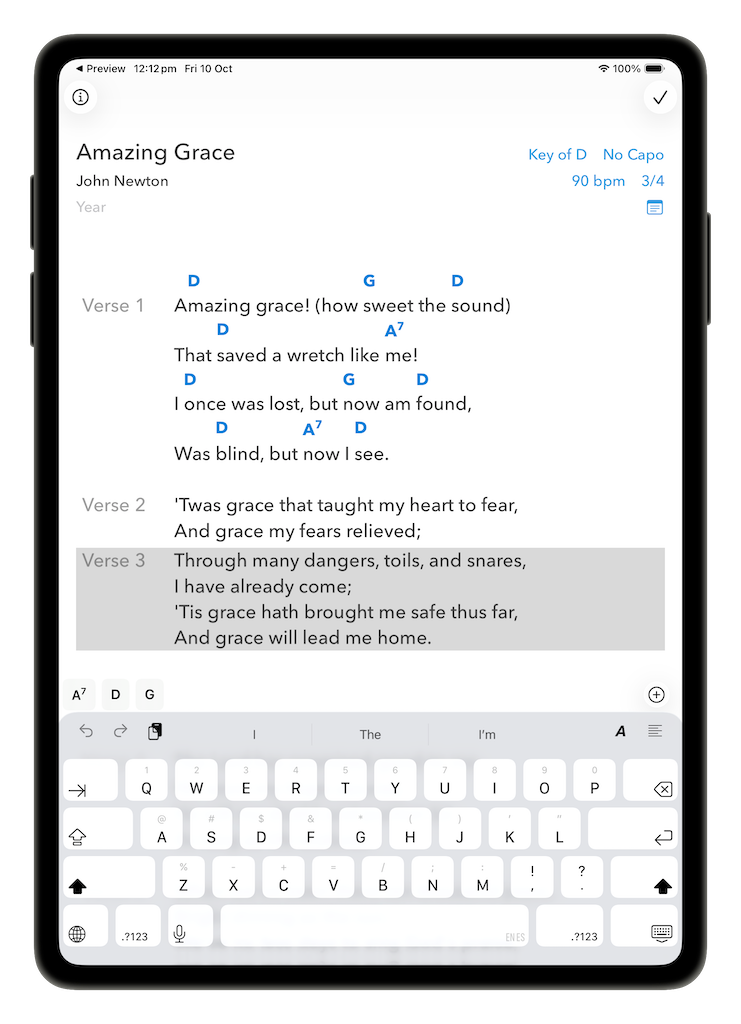
Tapping once anywhere within the lyrics sets the cursor position to the nearest word boundary. If you double tap on a word the entire word will be selected. A triple tap will select an entire line. A long press in the stanza’s margin will select the entire stanza.
To position the cursor within a word, tap once on the word to place the cursor next to it. Next long press on the word until you see a magnifying loupe, then precisely position the cursor where you need it. Alternatively, if you swipe with two-fingers on the on-screen keyboard, it becomes a trackpad allowing you to quickly and precisely move the cursor.
Once you have a selection, drag handles will appear allowing you to refine the selection.
Standard actions such as cut, copy, paste, etc, can be performed on selected text via the popup menu.
Formatting lines as lyrics or comments
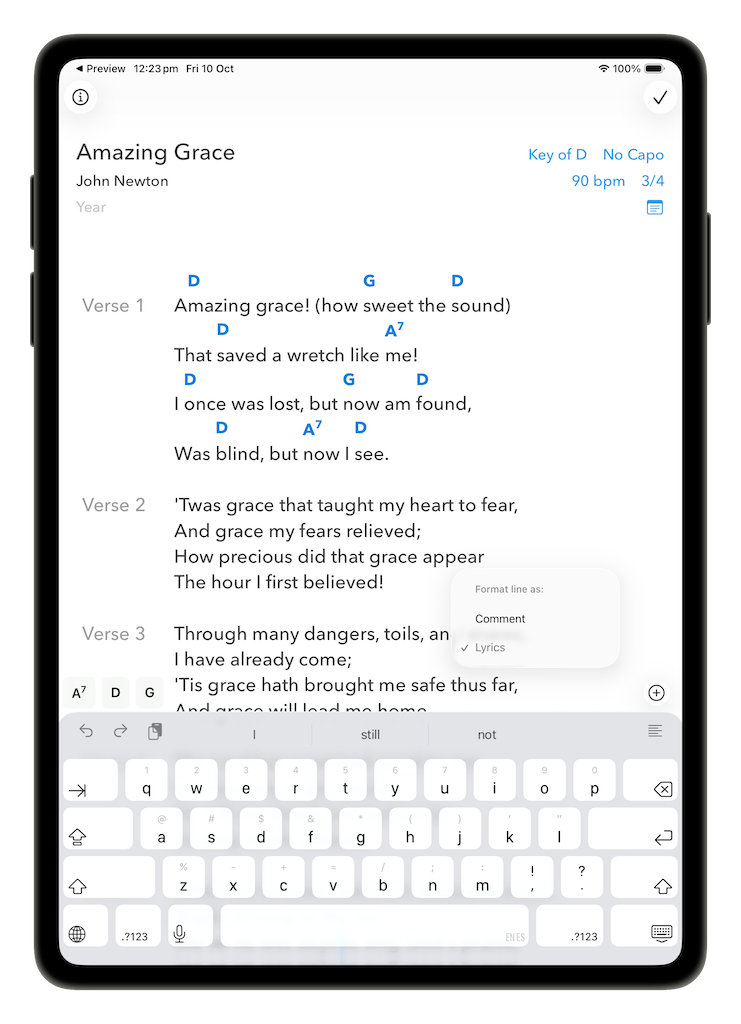
With the cursor on the line you wish to change formatting of, tap the A button on the keyboard’s toolbar to be presented with a menu allowing you to format the line as either lyrics or a comment.
Comments are automatically formatted with an italic font with a shaded background, and may be optionally excluded from being displayed on an external screen (this is an option on a Theme).
Comment lines do not include chords, so if you re-format a lyric line as a comment line, any chords it contains will be deleted.
Stanzas
Song lyrics are typically split into one or more stanzas. Because of this, when you leave a blank line between lines of text SongSheet Pro automatically recognizes your intent to create a new stanza, although by default it doesn’t assign it a name.
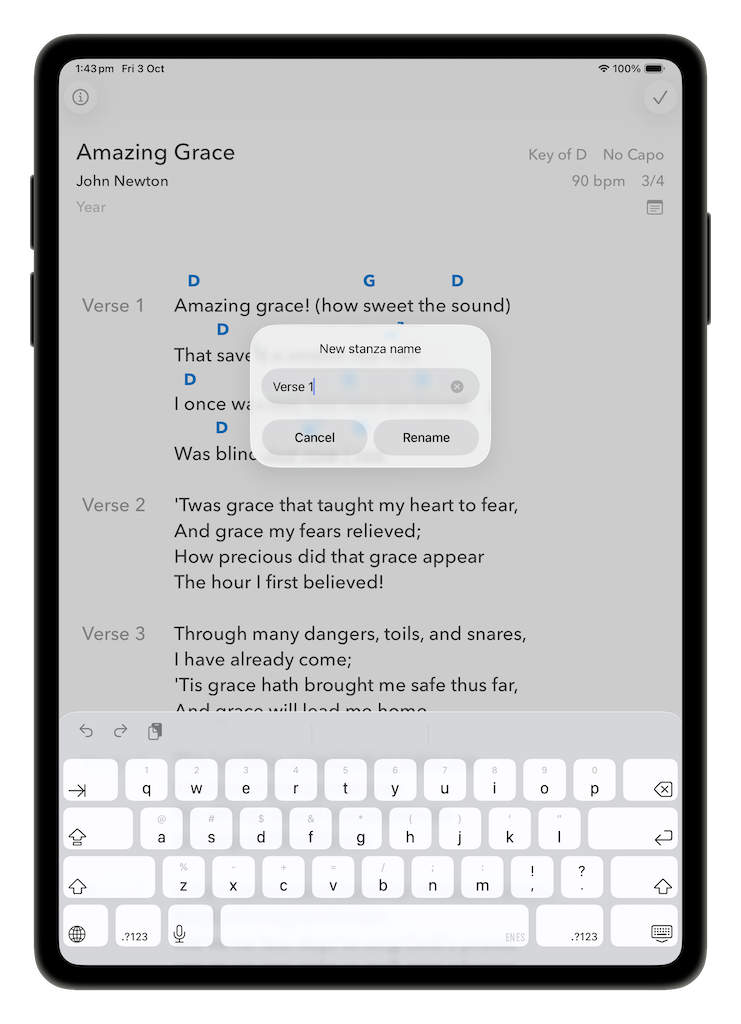
To assign a name to a stanza, tap the ¶ symbol to display a menu that allows you to easily select a standard name for the stanza. If you need to assign a name not present in the list, tap the Custom… option and type in a new name in the dialog that appears:
To rename a stanza that already has a name assigned, tap the stanza’s name and you will be presented with the same menu as before:
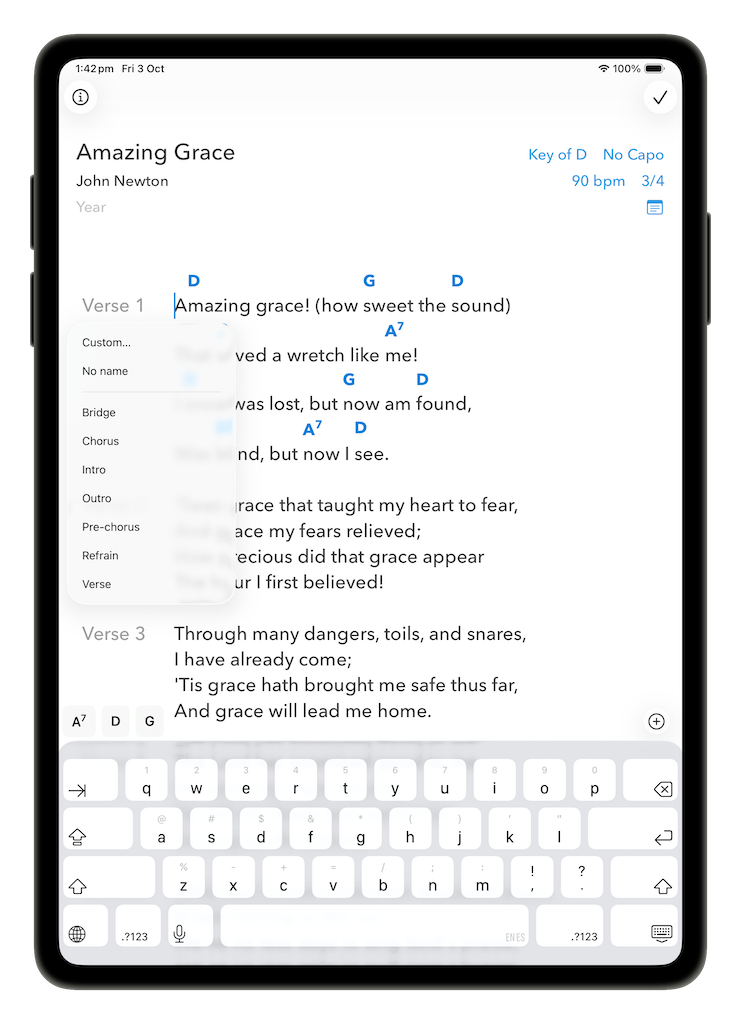
You can also remove an existing stanza name by tapping the No name menu option. The name will be replaced with the ¶ placeholder while editing the song.
When not in edit mode, SongSheet Pro hides all the ¶ symbols for stanzas without names.
SongSheet Pro makes it really easy to add to or remove from the default stanza names. Simply open up the settings and tap on Stanza names in the Song Editing section to view and modify the default stanza names.
Tablature
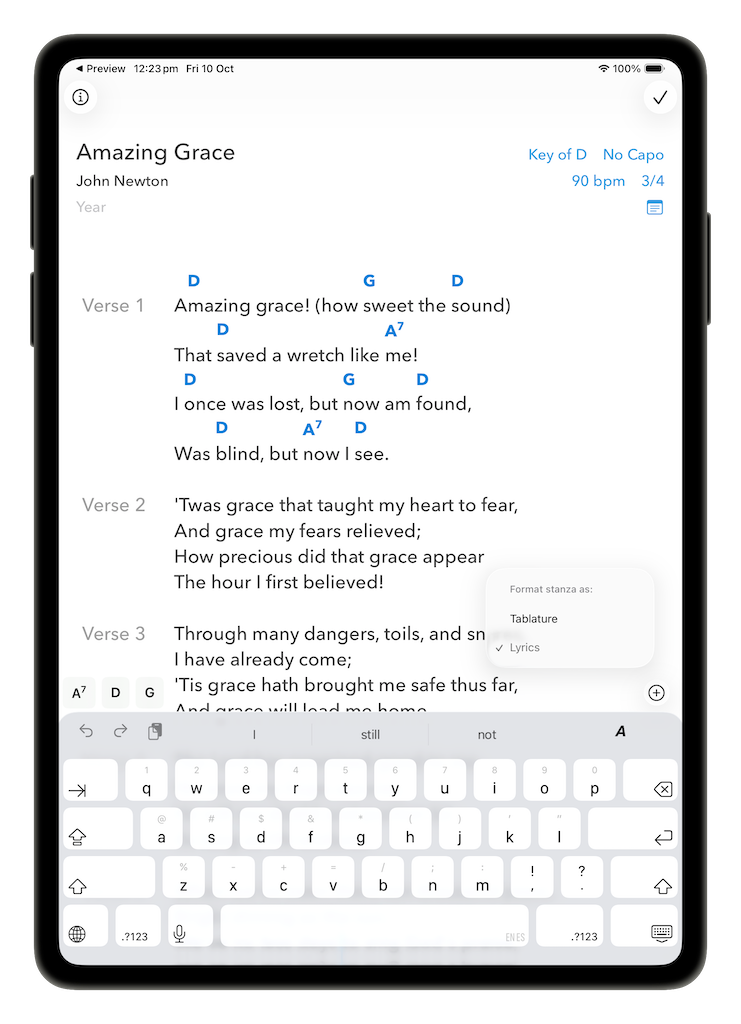
You can specify that a stanza contains tablature by selecting Tablature from the stanza format menu, accessible on the keyboard toolbar (below the chord palette). This causes the stanza to be formatted with a fixed-width font, allowing you to type out tablature and preserve precise formatting.
Rearranging stanzas
During the creative song-writing process you may want to change the order of stanzas within the song. This is accomplished through drag and drop.
To move a stanza, long press in the space near the stanza name (or the ¶ symbol if no stanza name is set) to begin the drag operation. This space is either in the left margin when stanza names appear to the left of the stanza, or to the right of the stanza name when they appear inline with the song text. The stanza will highlight; now just drag up or down through the song to move it to a new location. The song will dynamically update as you drag the stanza before or after existing stanzas. Once you lift your finger, the song will update with the new order, and the stanza text will be selected. Tap the selection to show the standard edit menu or tap elsewhere to clear the selection.