Working with chords
The chord palette
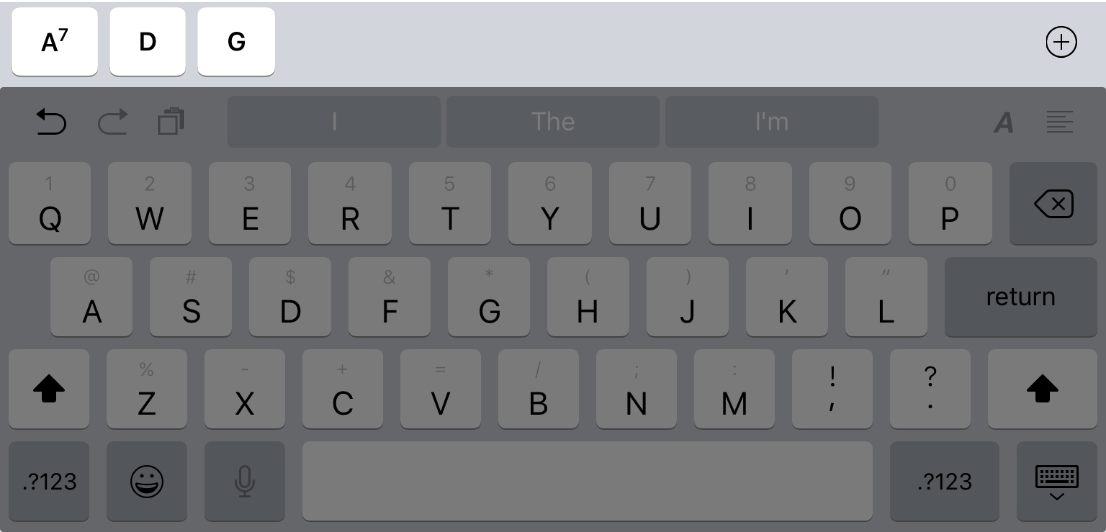
While editing lyrics, a chord palette is added to the on-screen keyboard. The chords on the palette are sorted according to the currently set key. To insert a chord at the current cursor position, tap a chord on the palette.
The chord palette is visible even when you are using an external keyboard. In this case it will be docked at the very bottom of the screen.
When there are too many chords to fit on the screen, the palette becomes scrollable: swipe left or right to view all of the chords you have available.
Default chords
When creating a new song from scratch, the chord palette comes ready with a set of default chords for easy use. These chords are C, Dm, Em, F, G, Am, and Bdim, and are based on the C major scale.
Since new songs are given the key of C major by default, it is really easy to change this set of chords to another key by transposing the song. Simply change the key and hit transpose, and the entire chord palette will change to that scale.
Alternatively, you can head to the settings page, where you will be able to modify the set of default chords to whatever you wish.
Add a chord to the palette
If you need to insert a chord into your song that you don’t have available on the palette, tap the + button at the far right of the chord palette. The on-screen keyboard will transform into the Create New Chord keyboard:
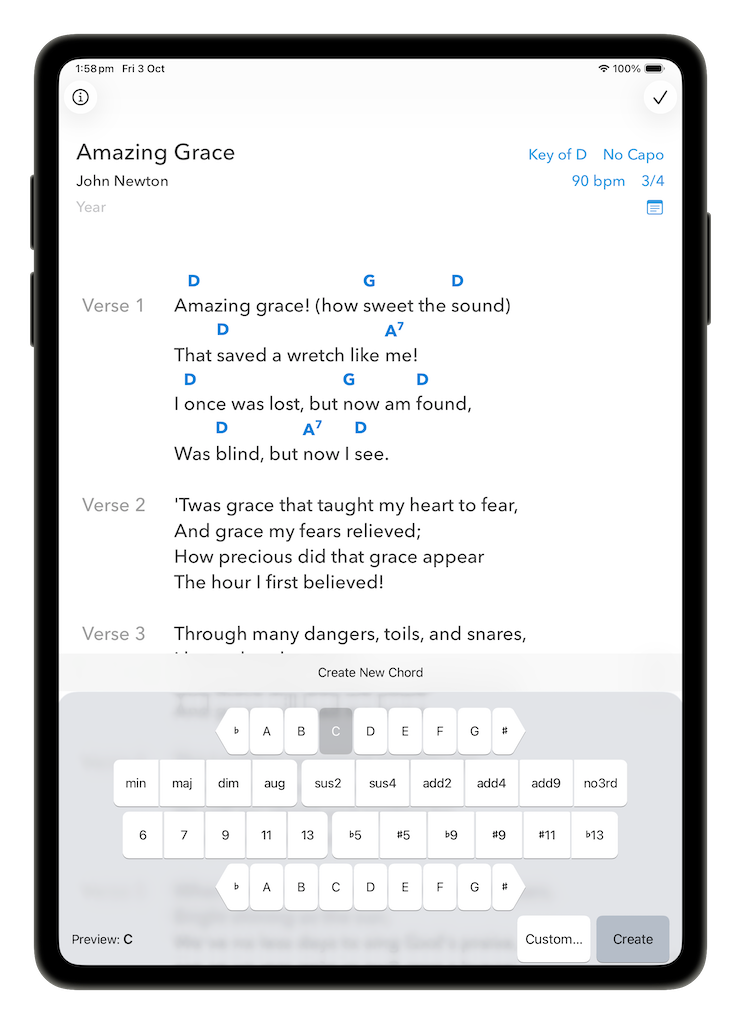
Once you have set all the parameters for your chord, tap Create to add it to the palette and insert it at the current cursor position.
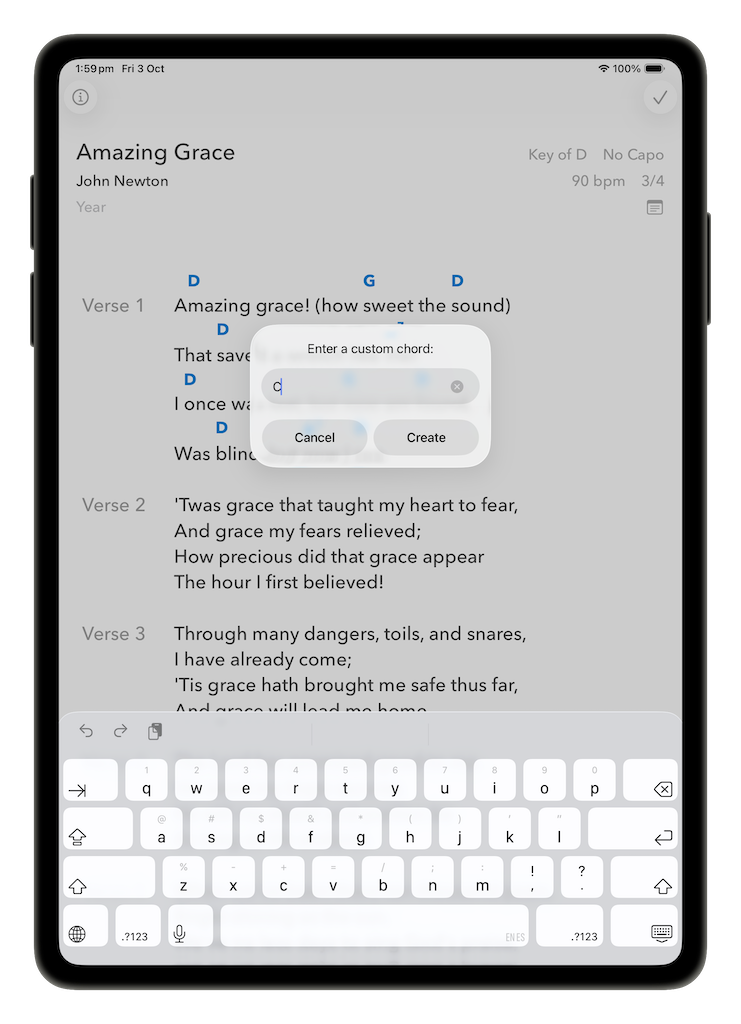
To create a chord that the standard chord editor does not cater for, tap Custom… You will be presented with a dialog in which you can enter whatever you want:
Editing the chord palette
If you tap and hold a chord in the palette, a menu will be shown:

Tap Delete to remove the chord from the palette. If the chord is used in the song, every occurrence of it will be removed.
To edit a palette chord, tap Edit… SongSheet Pro presents the chord editor for that chord:
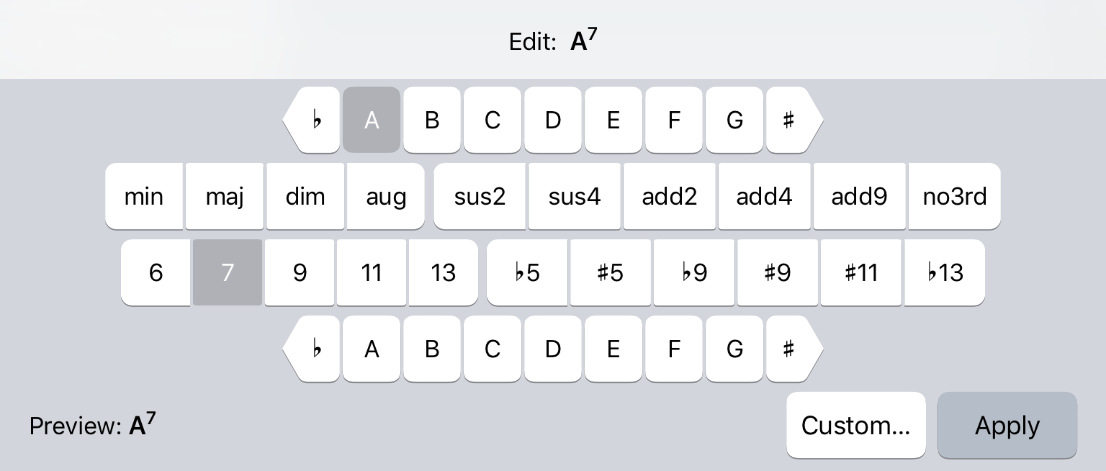
If you tap Apply the chord will be updated, including all occurrences of the chord within the song. If you don’t want to make any changes, just tap outside the chord editor and it will be dismissed.
Working with chords in the song
Tap a chord to select it. A drag handle will appear. Tap it a second time and an edit menu will appear:

If you long press the chord itself or the chord’s selection drag handle, you will be able to drag it to a new location within the song. Alternatively, if you use an external keyboard, use the cursor left and right keys to move the chord a single character at a time.
When you selected the chord, you would have seen that the keyboard transformed itself into the chord editor. To edit the chord, make any changes you need to make, then tap the Apply button (or tap anywhere else on the screen to cancel). If the new version of the chord doesn’t exist on the palette it will automatically be added.
SongSheet Pro also offers the ability to change the chord notation to Jazz notation and back again. This affects the notation of the chords in the song editor and in the chord palette, but not in the chord builder.