The theme editor
Displaying the theme editor
In order to edit themes, first tap on  (the select theme button) to show the select theme popover. In the top left of that popover is an Edit button. If you tap on that you will be taken to the theme editor, with the current theme selected for editing.
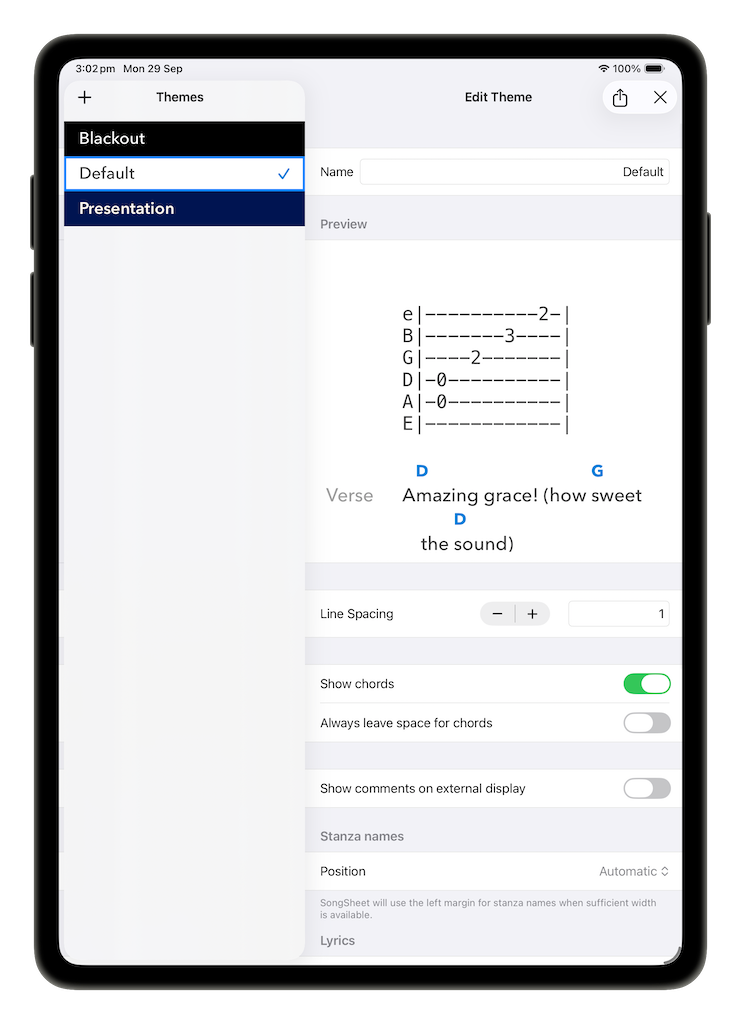
The theme editor is broken into two panels. The left panel lists all the themes currently installed, while the right panel allows you to edit the currently selected theme.
Selecting, creating and deleting themes
In the left-hand panel, tap on a theme name to select it. The theme editor (described below) on the right will show the new theme.
To create a new theme, tap the + button at the top-left of the screen. Initially, the new theme is simply a copy of the last selected theme. This is for convenience to give you a starting point for your new theme.
If you wish to delete a theme, swipe from right-to-left across the theme name and a Delete button will appear. Tap the button to permanently delete the theme.
Layout of the theme editor
| Theme list | Theme detail |
|---|---|
 |
 |
From top to bottom, the theme editor presents the following controls:
- Share button: tap this for the option to send this theme to another user, or to save the theme to files.
- Exit button: tap this for the option to return to the last view.
- Text field allowing you to edit the theme name.
- Lyrics preview window: as you change fonts, colors, etc, this will automatically update to give you an idea how songs will look.
- Line spacing stepper: tap on the plus or minus to increase or decrease line spacing, respectively.
- Chord visibility options: allows you to modify the formatting of chords within the song
- Comment visibility toggle
- Stanza name position menu: allows you to choose between having stanza names displayed inline or in the left margin of the song (when possible)
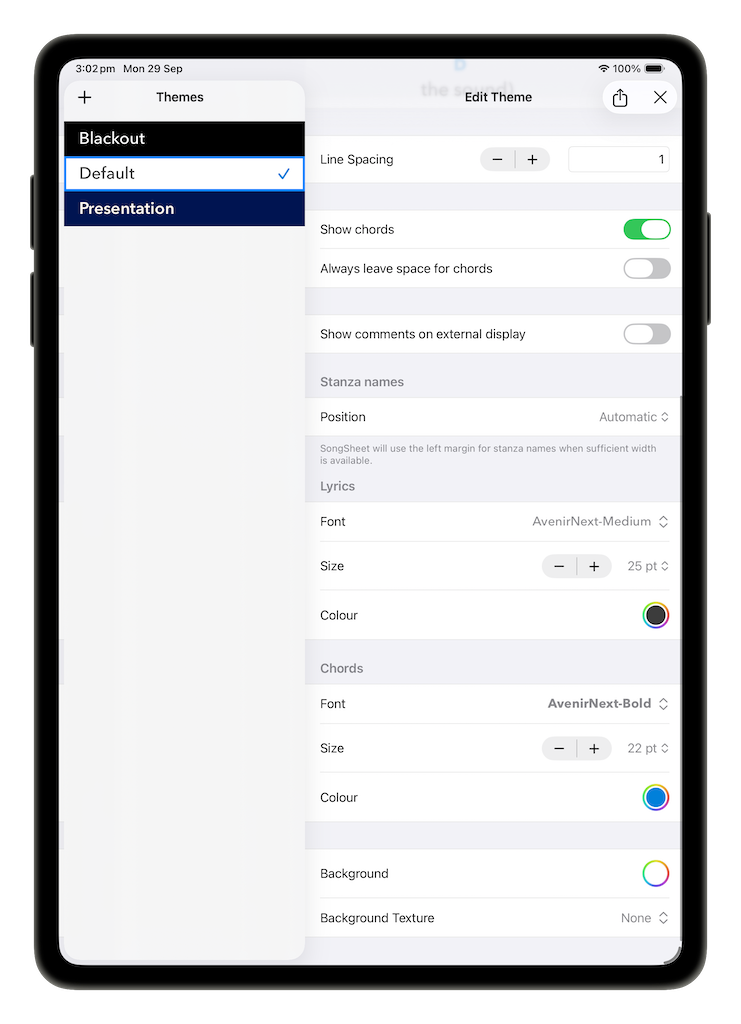
- Lyrics, chords and background editors: allows you to set font, font size, font color, background color and background pattern. (See below for more information on each of these topics.)
You do not need to explicitly save your changes - SongSheet Pro does this automatically.
Formatting lyrics and chords
For both the lyrics and chords, you have the same options for how they are displayed. There are options to modify their fonts, sizes, or colors.
To choose the font, tap on the font row, and then select a font from the picker. Some fonts will provide further options, such as offering bold, italics, or underlined versions of the font.
To change the size of the lyrics or chords, you can use the stepper to gradually increase or decrease the size of the font, or you can use the picker to select a font size. You can also modify the font size of the lyrics and chords when viewing a song in either edit or perform mode by using a pinch gesture on the screen. This ability can be turned on or off in SongSheet Pro’s settings page.
To modify the color, press on the color circle under the color option. This will present a color picker, allowing you to choose whichever color you wish from either a grid of pre-defined colors, a color spectrum, or using RGB values to define a color. You can also add a selected color to the color palette at the bottom of the picker for easy access later.
Background and background patterns
You can set the theme background color in the same way you set the lyric and chord colors. This background color will be used as the color of the song background when viewing a song in your library, and if used for the external display, the color of the background there as well. When in your library view, the background will be a muted version of that color (e.g. dark-grey if black).
Tapping the Background button displays a popover which shows a selection of built-in textures you can use as a background to your lyrics:
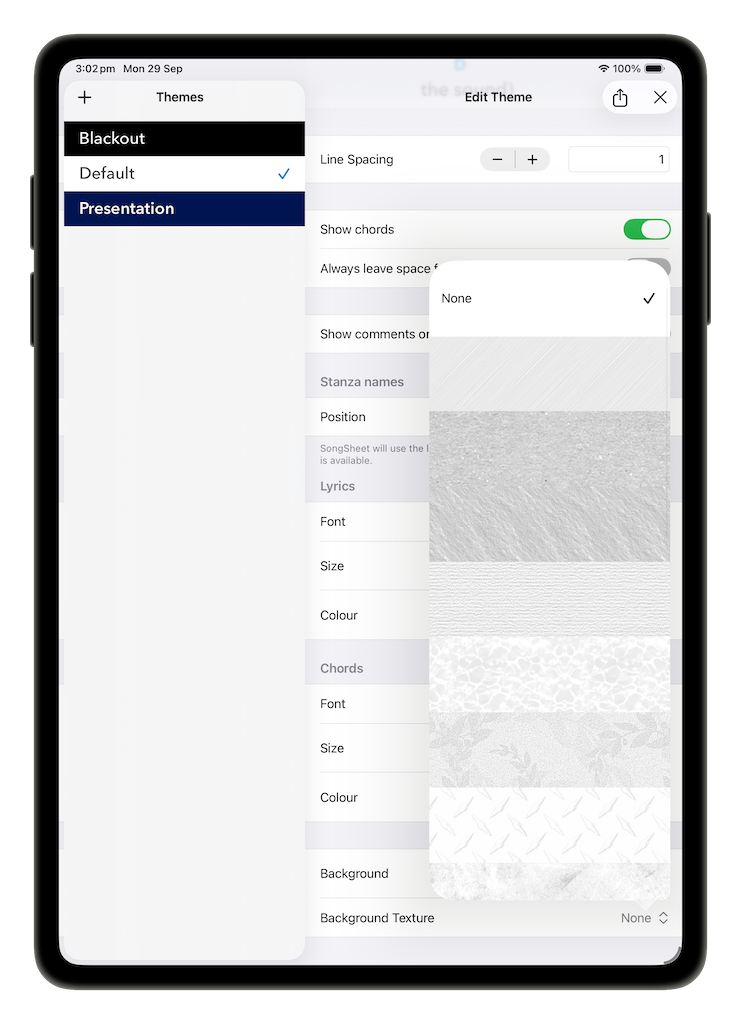
The top-most selection represents a blank background. Scroll through the patterns and tap on one to select it. Tap anywhere else on the screen to dismiss the popover. Like the background color, this pattern will be used as the song background and as the background on an external display.