Customizing SongSheet Pro
It is easy to change the look and feel of SongSheet Pro with respect to fonts and colors. Each set of font and color combinations that you create is called a theme.
You have control over:
- lyric font, size and color
- lyric line spacing
- chord font, size and color
- showing chords on external display
- leaving spaces for chords, even when there is none
- visibility of comments on external display
- location of stanza names
- background color
- (optional) background pattern
Although these choices are most clearly seen in the song view, they affect the look and feel of the whole application. For example, tappable buttons follow the selected chord color. Labels follow the lyric color. The song background color is used across the interface.
The reason for this is simple. Your iPad is a light source. Imagine being suddenly bathed in soft green light under blackout conditions because you just wanted to take a quick look at the library view. So where possible, we have tried to make the luminosity and hue of the application consistent wherever you are.
Choosing a theme
You can quickly switch themes at any time by tapping  (the select theme button) at the top of the screen. A popup menu will appear listing the available themes. Simply tap the theme you want to switch to.
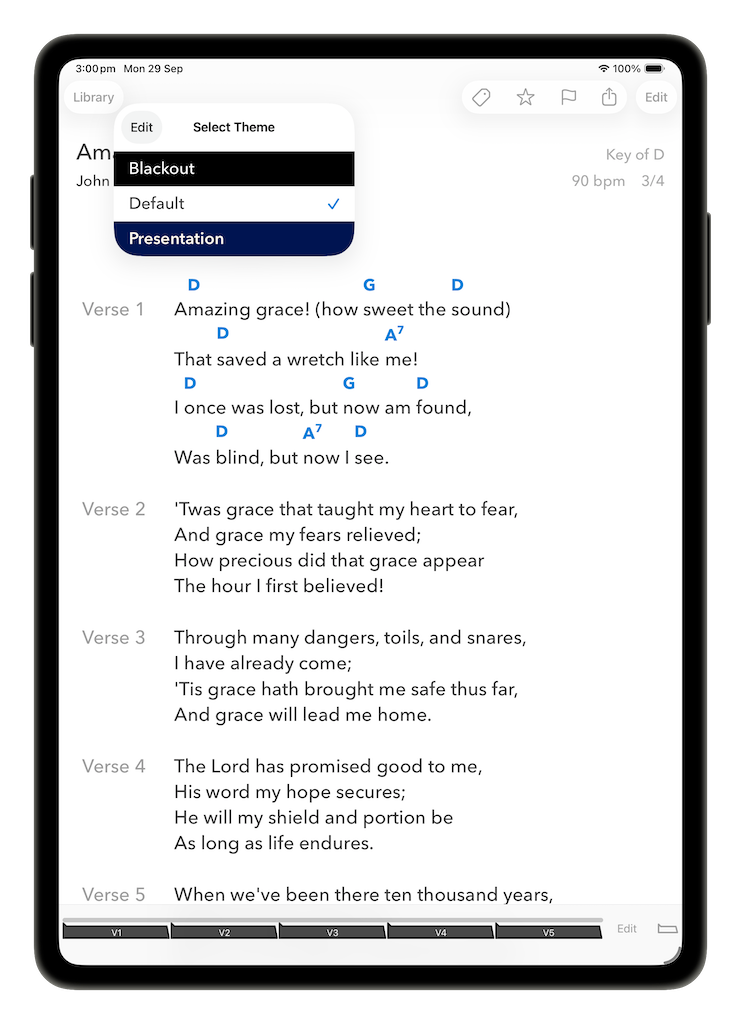
The available themes depend on the appearance settings of the device you are using. If the device is set to light mode, all your themes will be available, but if the device is set to dark mode, only dark themes will be available. In addition, SongSheet Pro will remember your last selected theme in each mode, so when your device switches from light mode to dark or back again, it will use your last one!
External displays
If you are using an external screen, you can choose a separate theme for that. See the section on external displays for more information.
Sharing a theme
Just like songs and setlists, themes can be shared. In the theme editor view, tap the share icon to open the share sheet, then choose a method to Send Theme (e.g. via AirDrop, Messages, or Mail) or Save to Files. The latter is a handy option as a backup for an individual theme.