Share, export, and print setlists
Do you need to get everyone in the band singing or playing from the same setlist? It’s as simple as using AirDrop, sending an email, or printing your setlist.
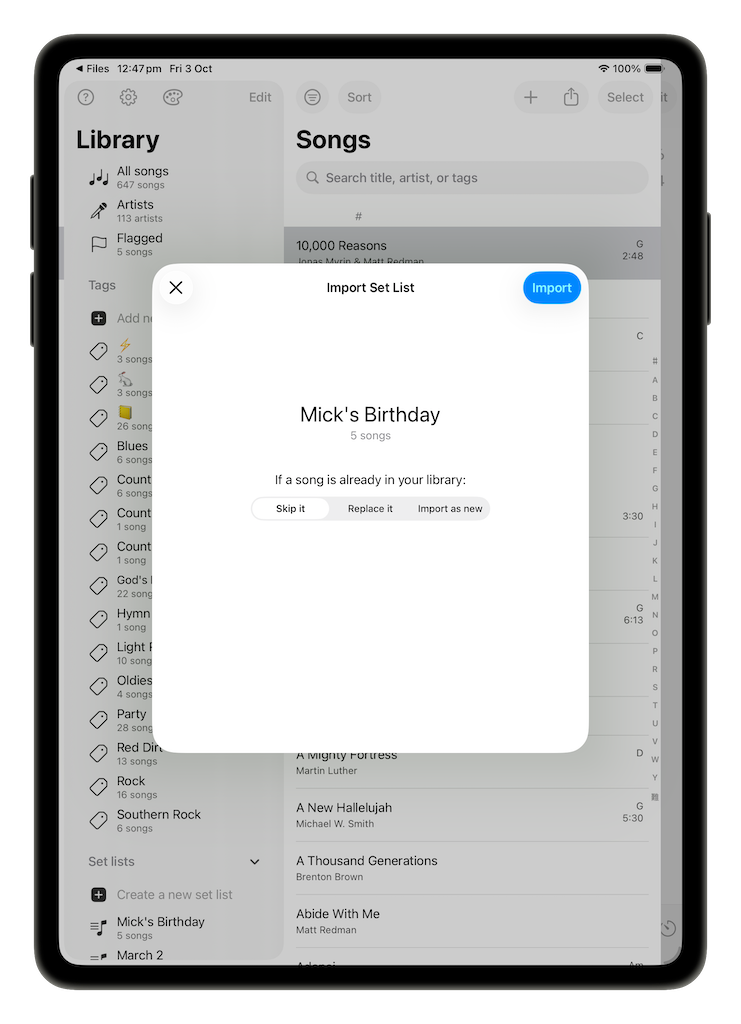
With the setlist you wish to share selected, open the share sheet by tapping  (the share button). This will present you with several options with which to share the setlist, including sharing via an app, exporting, printing, or saving the setlist to files.
Share via an app
If you select one of the apps presented (or AirDrop), SongSheet Pro will make a copy of every song in your setlist, and allow you to send the resulting archive via whichever app you choose. Upon importing it into their copy of SongSheet Pro, your bandmates will find a new setlist in their library with a copy of every song in the original setlist.
Export as
Choose this option to create a PDF, ChordPro 5.0, or CSV version of your song list only (not the songs themselves). Once you have chosen the format to export the setlist into, you can choose to share or save the file onto your device.
This option brings up a print preview with options for configuring the printer. The file being printed will consist of a song list with all the songs in the setlist, along with their keys. If you wish to print the songs along with the song list, then toggle include songs when printing setlists or creating setlist PDFs. Each song will begin on a new page.
Save to Files
SongSheet Pro will export all the songs in the setlist into a single file. You can then save this file in your Files app on your device. This is the most effective way of creating a backup of a single setlist.
Importing shared setlists
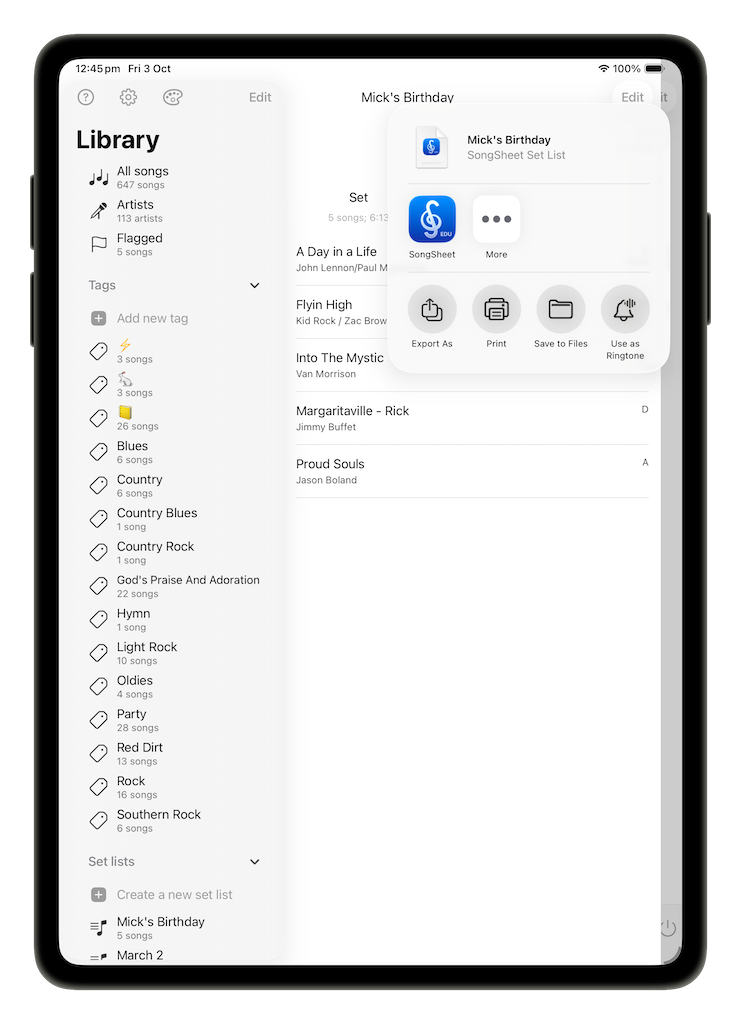
When you receive a setlist, tap on the archive, and choose the option to Open in SongSheet Pro. SongSheet Pro will give you several options what to do if the songs contained in the setlist are already in your library. You can choose to:
- Skip it - if a song in the setlist is already in your library, SongSheet Pro will not import that song, to prevent you from having duplicate songs in your library. The song will still be added to the new setlist.
- Replace it - if a song in the setlist is already in your library, SongSheet Pro will replace the version in your library with the version being imported. This is useful for if your bandmate has made some changes that you want to be brought over to your library.
- Import as new - this will import a new version of the song, alongside your old version.
If for some reason you already have a setlist with the same name as the one you are importing, SongSheet Pro will give you the option to Replace existing setlist or Import as new setlist. Choose the appropriate option, or cancel, and SongSheet will handle the rest for you.