Print and PDF
Introduction
SongSheet Pro can print your songs wirelessly via AirPrint. Alternatively, you can create a PDF version of a song to open in another app on your iPad, or send to someone via email or AirDrop.
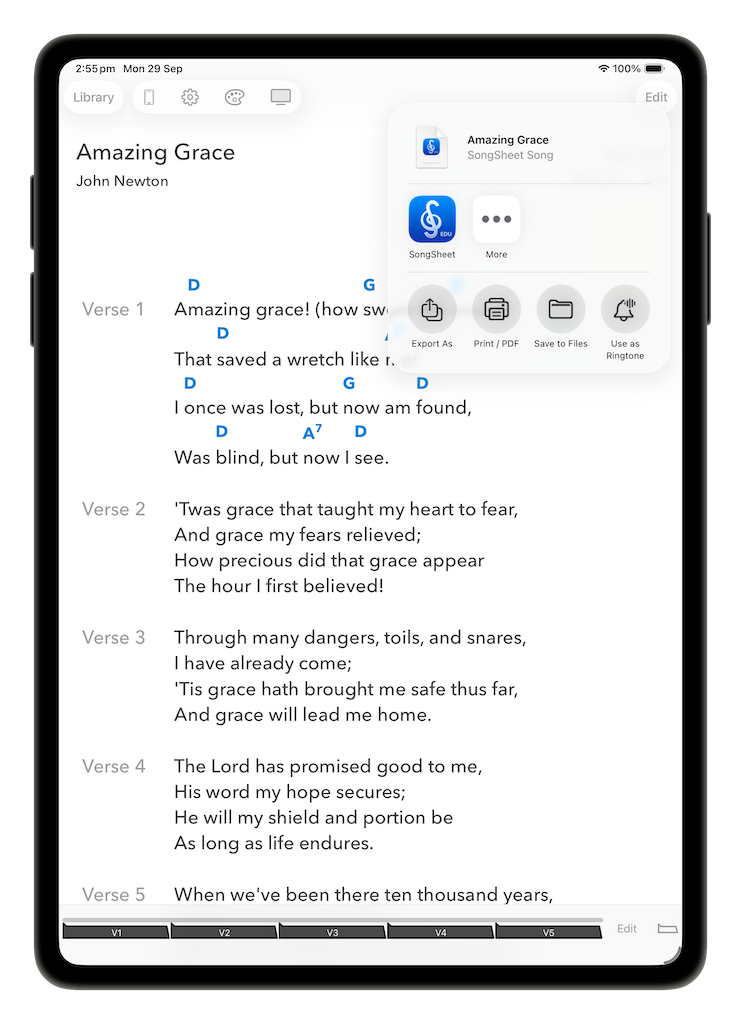
Both of these scenarios are accomplished through the Print / PDF Preview screen. You can access this by tapping  (the Share button) in the song view, then Print / PDF from the popup menu.
SongSheet Pro also offers customization around the inclusion of songs in PDF versions of setlists.
Controlling the print layout
Across the bottom of the Print Preview screen is the print toolbar. As you change the various parameters the preview is automatically updated. SongSheet Pro also remembers your selections so the next time you print you don’t need to set everything up again.
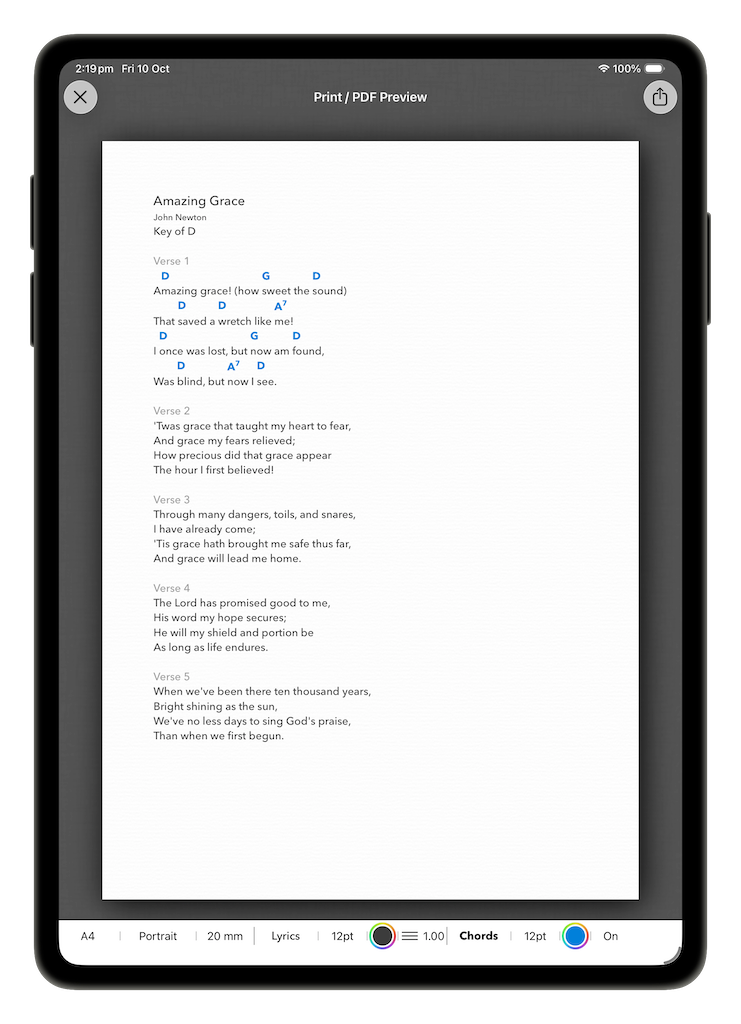
From left to right, the options are:
- Paper size: this defaults to Letter in the US, and A4 in most other countries. Tap this to choose between alternative paper sizes. Note that when printing if the actual paper size is different, SongSheet Pro will automatically scale to match the real paper size.
- Paper orientation: allows selection between Portrait and Landscape orientations. By default Portrait is selected.
- Page margins: in countries that use the Imperial measurement system (e.g. the US) this value will be in inches, otherwise you can select between predefined values measured in millimeters.
- Lyrics font: tap this to select a font in which to typeset the song lyrics.
- Lyrics font size: select from a list of predefined font sizes, measured in points.
- Lyrics color: tap this to open a color picker in which to color the song lyrics.
- Lyrics line spacing: tapping this will present a slider control which allows setting the line spacing for lyrics and chords.
- Chord font: tap this to select a font in which to typeset chords.
- Chord font size: select from a list of predefined font sizes, measured in points.
- Chord color: tap this to open a color picker in which to color the chords.
- Display/hide chords: tap to toggle between On (show chords within the song) and Off (lyrics without chords).
Printing to an AirPrint printer
Assuming there is an AirPrint printer available on your network, tap
(the Share button) at the top-right of the screen to show the share popover, then select the Print option. Select your printer and printing options, and then tap Print in the popover in order to print out the song.
Sharing a PDF version of your song
An alternative to directly printing your song via AirPrint is to create a PDF version. Tap
(the Share button) and select an option from the popover:
- Send Song - send the song via AirDrop, or via Mail or another app.
- Copy - Saves the PDF to clipboard.
- Markup - Opens up the PDF in an editable format, from which you can either save or share the edited PDF.
- Print - Opens up the print menu, as outlined in the previous section.
- Save to Files - Opens up the Files app so that you can save the PDF of the song on your device.