SongSheet Remote
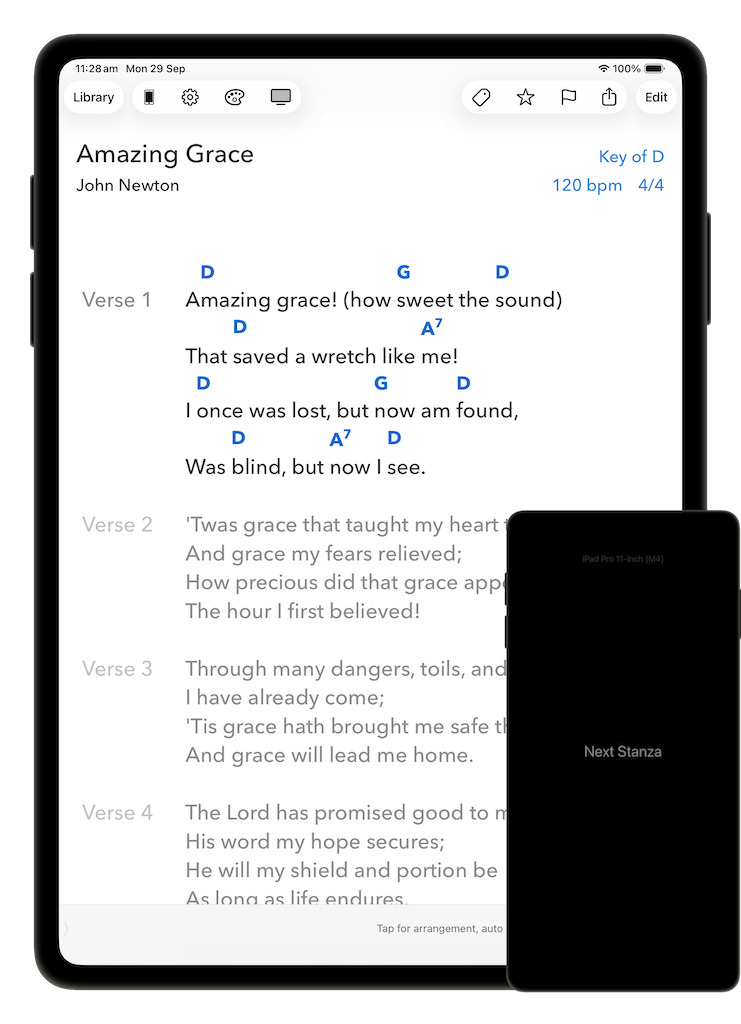
SongSheet Remote is a free app available on the App Store for your iPhone or iPod Touch. It is designed to make controlling SongSheet Pro on your iPad easier while you are performing.
There are a number of solutions on the market to mount your iPhone directly onto your guitar or other musical instrument. Interacting with the device in this position is easier than having to awkwardly reach out to tap the screen of an iPad mounted on a music stand in front of you.
Configuring the Remote
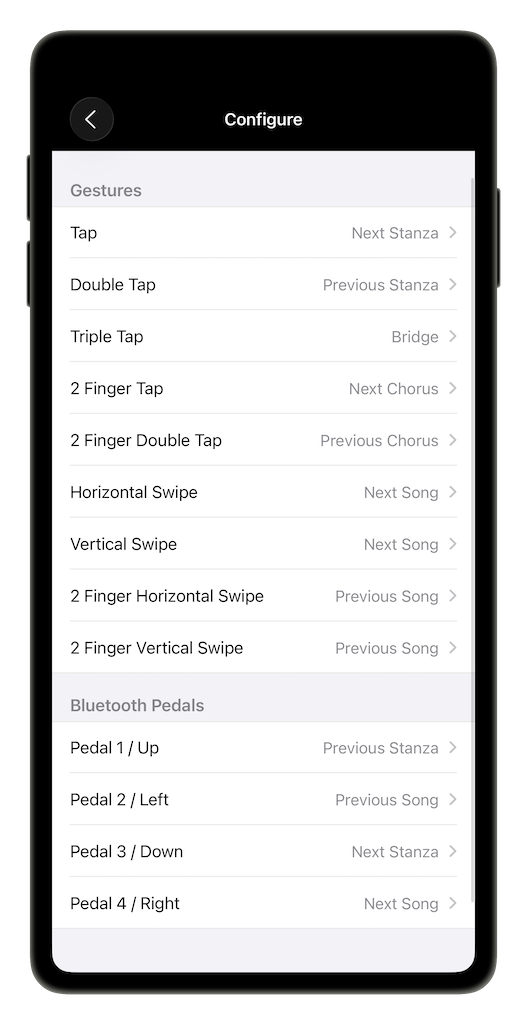
Using taps, swipes or a Bluetooth foot pedal, you can wirelessly send any of a number of commands to SongSheet Pro. On SongSheet Remote’s Connect screen, tap  to enter the configuration view.
Available commands
You can configure any supported gesture or pedal to send any one of the following commands:
- From the top – SongSheet Pro scrolls to the top of the song.
- Next Stanza – the next stanza (regardless of type) is highlighted. When using an arrangement, the next stanza is the next in the arrangement, not necessarily the next in the song.
- Previous Stanza – the previous stanza (regardless of type) is highlighted. When using an arrangement, the previous stanza is the previous in the arrangement, not necessarily the previous in the song.
- Next Chorus – behaves like Next Stanza but only selects a stanza marked as Chorus (if present).
- Previous Chorus – behaves like Previous Stanza but only selects a stanza marked as Chorus (if present).
- Bridge – jumps to the stanza marked Bridge, if present.
- Play / Pause – if a song is configured with auto scroll or a backing track, this command will start or stop scrolling/playing.
- Next Song – SongSheet Pro will scroll to the next song in the setlist or library.
- Previous Song – SongSheet Pro will scroll to the previous song in the setlist or library.
Gestures: taps and swipes
We have tried to keep the set of supported gestures as simple as possible in order to minimize the risk of accidentally triggering the wrong command.
For this reason, swipe gestures are based on orientation, not direction. That is, a horizontal swipe works either right-to-left or left-to-right – these are treated as the same gesture.
The gestures available to send commands are:
- Tap - tapping once on the screen
- Double Tap - tapping twice on the screen in quick succession
- Triple Tap - tapping three times on the screen in quick succession
- 2 Finger Tap - tapping once on the screen with two fingers
- 2 Finter Double Tap - tapping twice on the screen with two fingers in quick succession
- Horizontal Swipe - swiping left-to-right or right-to-left (across the short dimension of the phone)
- Vertical Swipe - swiping up-to-down or down-to-up (across the long dimension of the phone)
- 2 Finger Horizontal Swipe - swiping left-to-right or right-to-left with two fingers
- 2 Finger Vertical Swipe - swiping up-to-down or down-to-up with two fingers
Bluetooth pedals
Rather than pairing your AirTurn BT-105 or other Bluetooth-based foot pedal to your iPad and SongSheet Pro, consider pairing it to your iPhone running SongSheet Remote instead. This has the advantage of not interfering with the iPad’s software keyboard, since Bluetooth pedals work by emulating a keyboard.
For more information, see the page on Bluetooth pedals.
Connecting SongSheet Remote to SongSheet Pro
To make a connection between SongSheet Pro and SongSheet Remote for the first time, follow the procedure below:
- Make sure either Bluetooth or wireless networking is turned on on both devices in order for them to communicate. You do not need to be connected to a WiFi network in order for a connection to be made between your devices.
- Launch SongSheet Pro on your iPad and SongSheet Remote on your iPhone or iPod Touch.
- The default screen for SongSheet Remote is the connection screen. In SongSheet Pro, you need to navigate to a song in a setlist, and then tap
 to display the connection popover. SongSheet Pro should now discover SongSheet Remote:
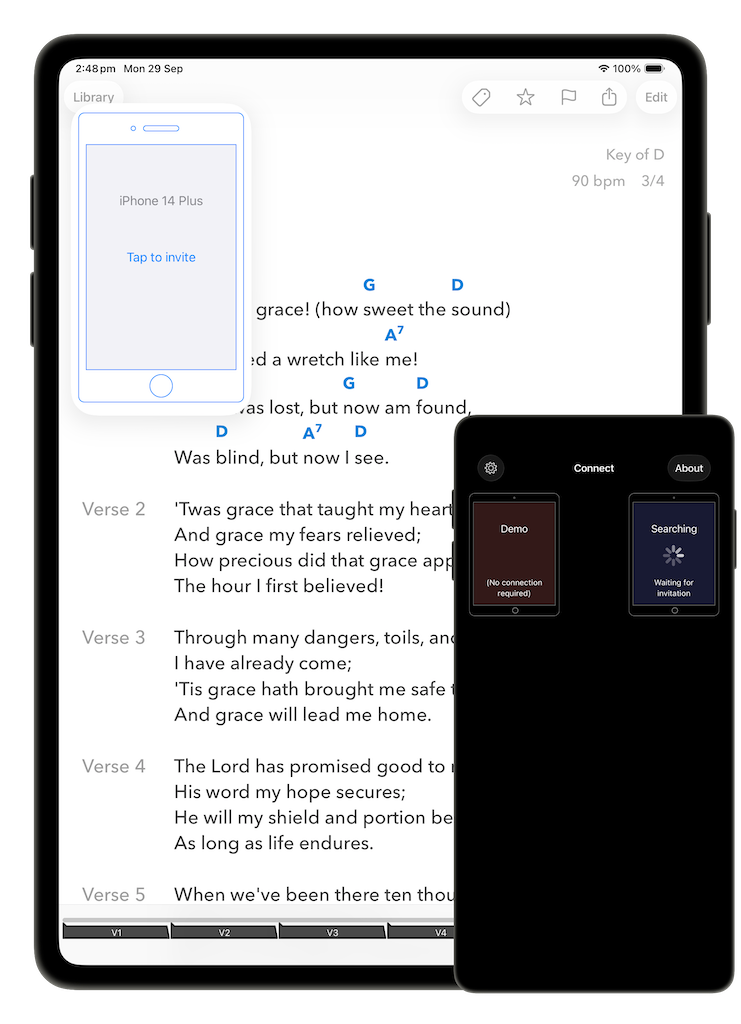
After SongSheet Remote is discovered by SongSheet Pro, tap to send a connection invitation. SongSheet Remote will present the invitation with the instruction to tap to accept:
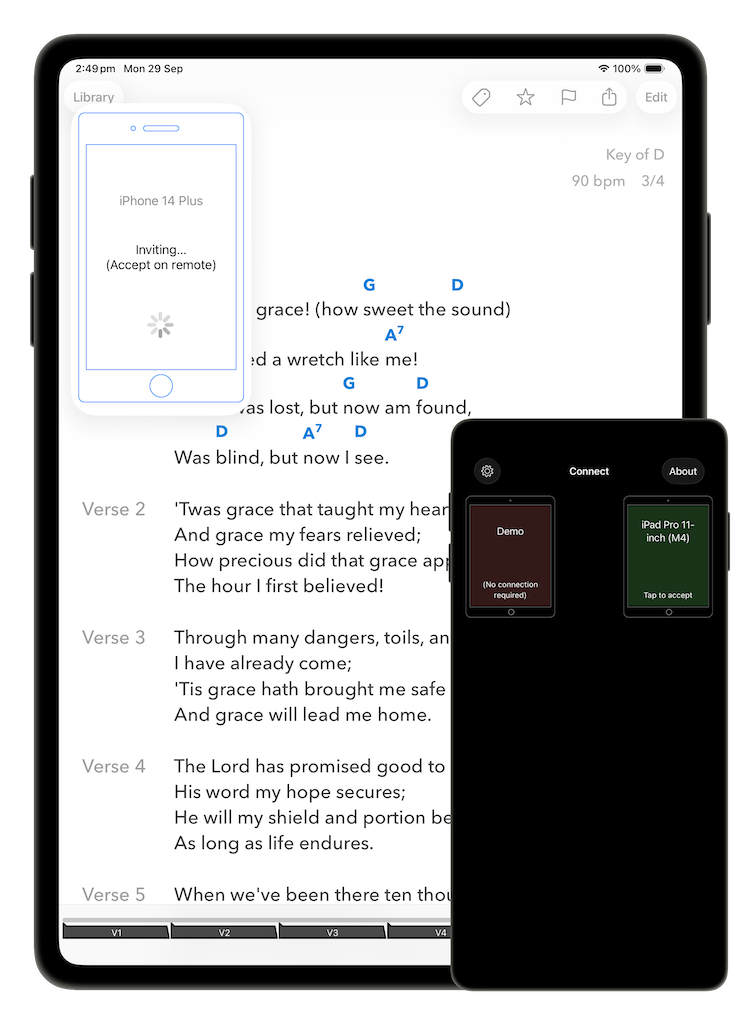
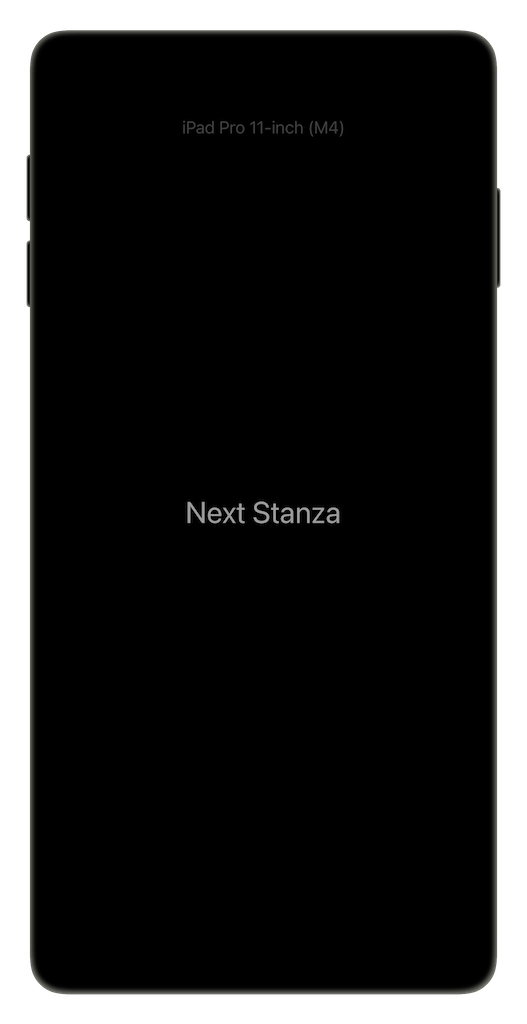
Once connected, SongSheet Remote will automatically transition to the Send Commands view which, by design, is almost entirely black. Send commands to SongSheet Pro using the configured gestures or a Bluetooth foot pedal. A brief acknowledgement of the command will appear on the screen before fading away.
To disconnect, open the connection popover in SongSheet Pro and tap on the phone image. Alternatively, in SongSheet Remote tap and hold for several seconds until you are returned to the connection screen.
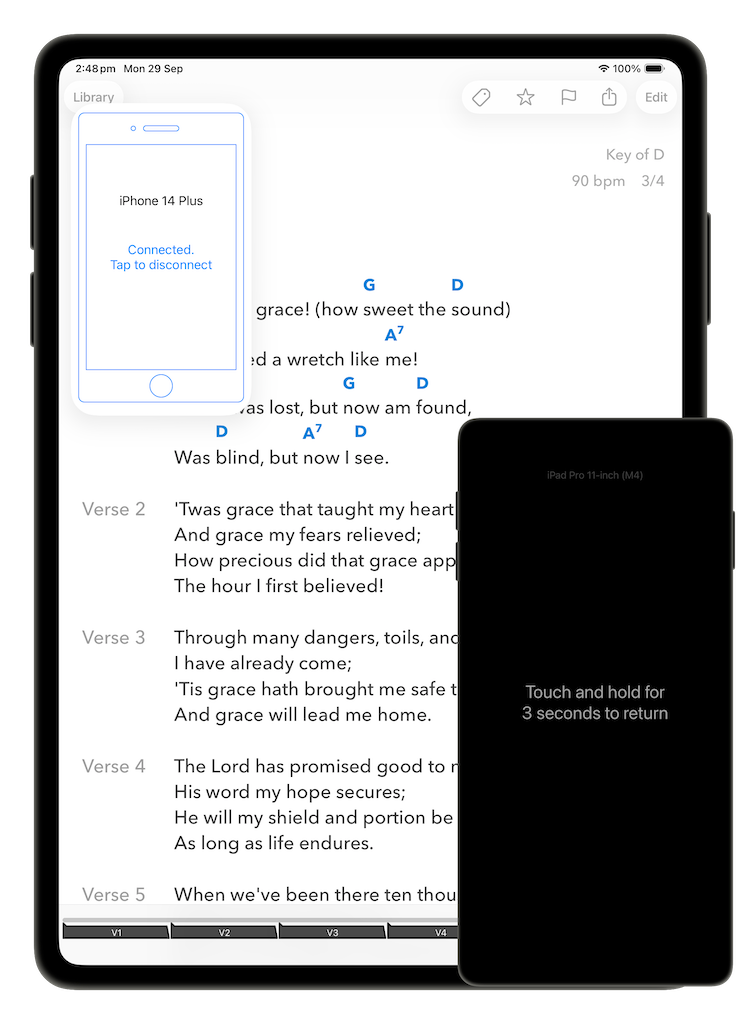
Once a connection is successfully made, the two devices are considered to be paired. The next time SongSheet Pro is launched, it will search for the last connected SongSheet Remote for about two minutes before giving up. After this time you will need to manually connect using the procedure outlined above.